
See and export transactions

Every payment is listed with its student, product, gateway, amount and status, with bills you can print or email.

Where: Transaction → Transaction List

Steps

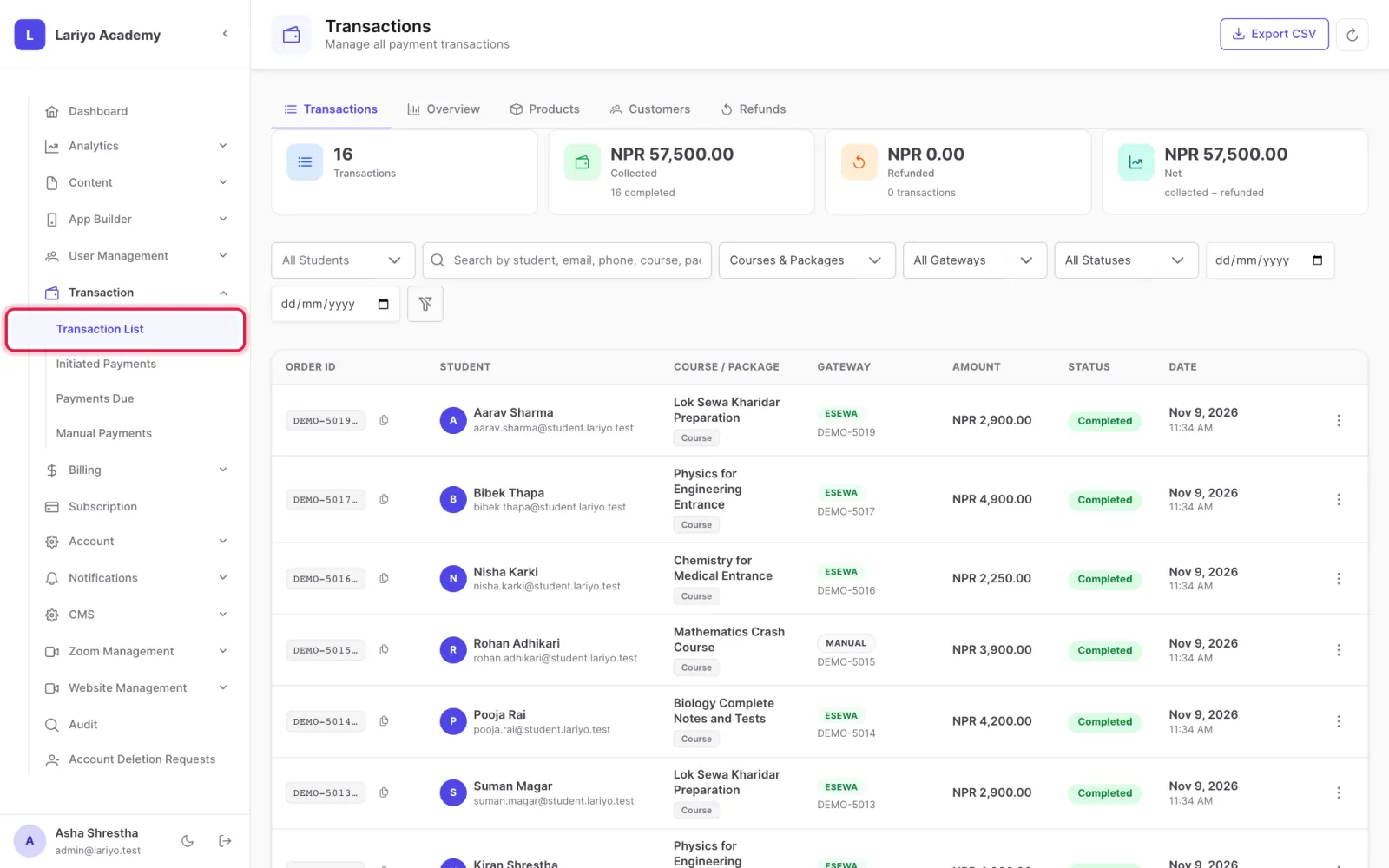
  1. Open Transaction → Transaction List.
    Step 1 of 5 in the Lariyo admin panel (Transaction → Transaction List): Open Transaction → Transaction List. The control to use is outlined in red.
  2. Search and filter by date, gateway and status.
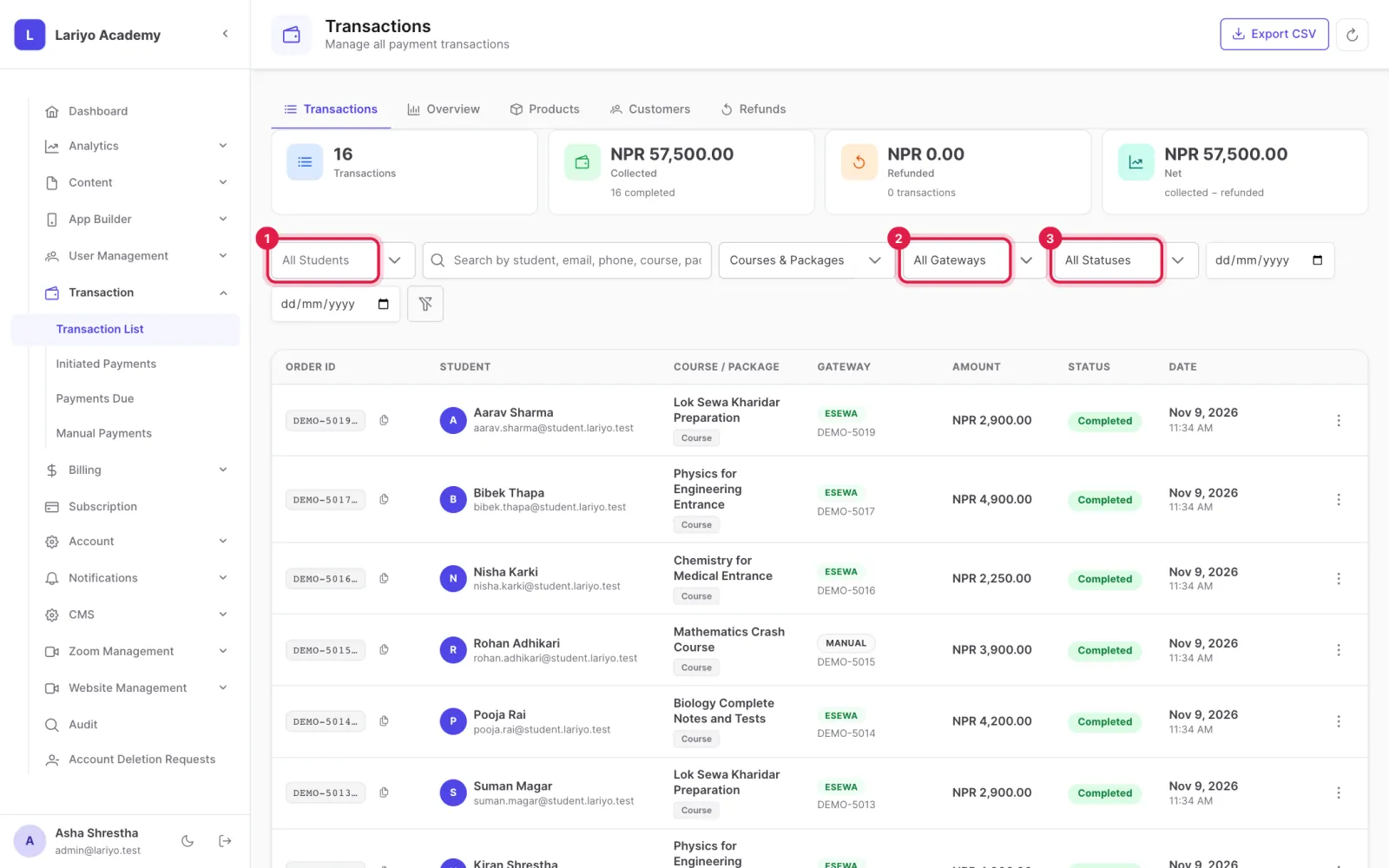
    Step 2 of 5 in the Lariyo admin panel (Transaction → Transaction List): Search and filter by date, gateway and status. The control to use is outlined in red.
  3. Open a transaction to email the bill to the student, download it as PDF or print it.
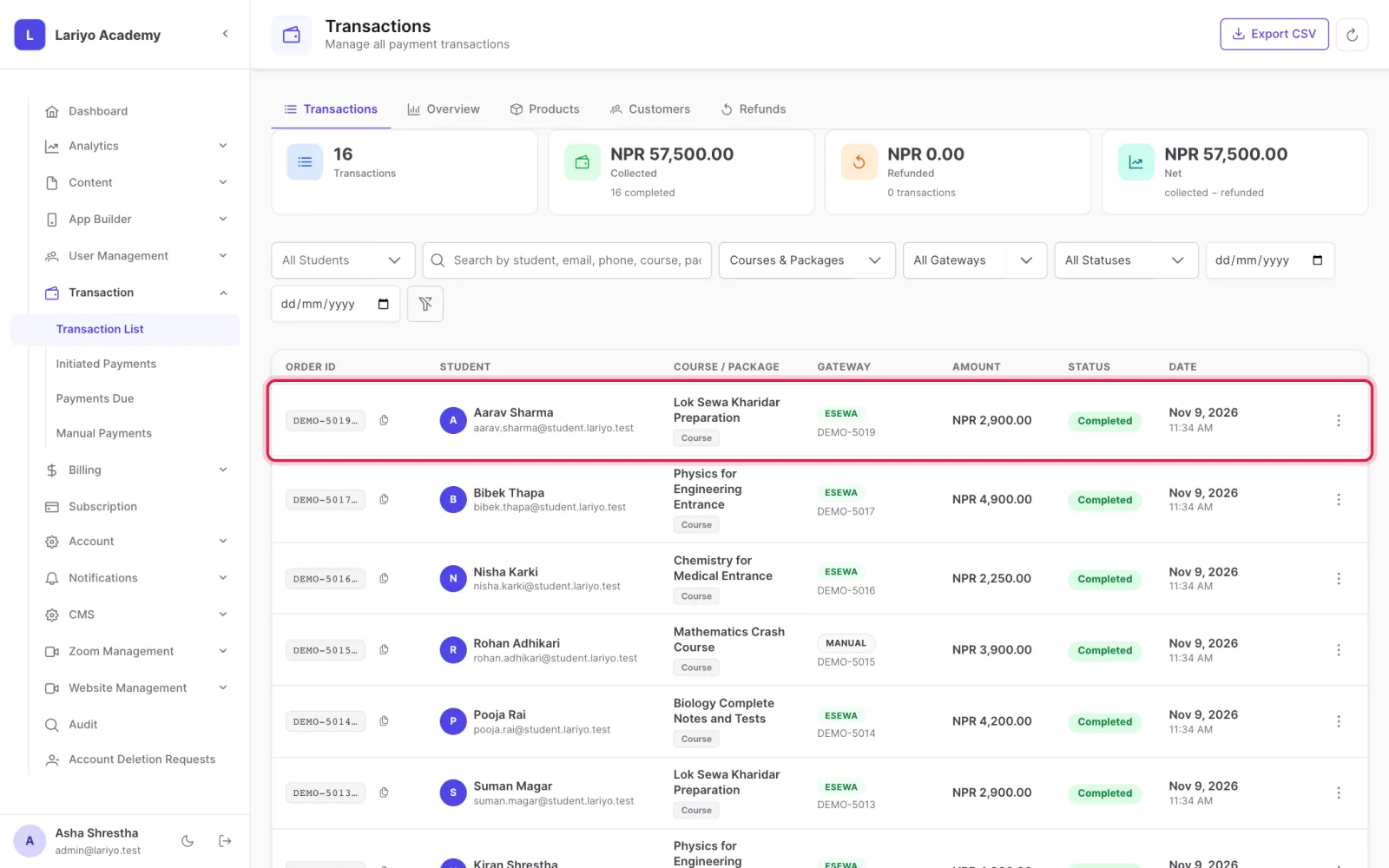
    Step 3 of 5 in the Lariyo admin panel (Transaction → Transaction List): Open a transaction to email the bill to the student, download it as PDF or print it. The control to use is outlined in red.
  4. Use the Overview, Products, Customers and Refunds tabs for sales analytics.
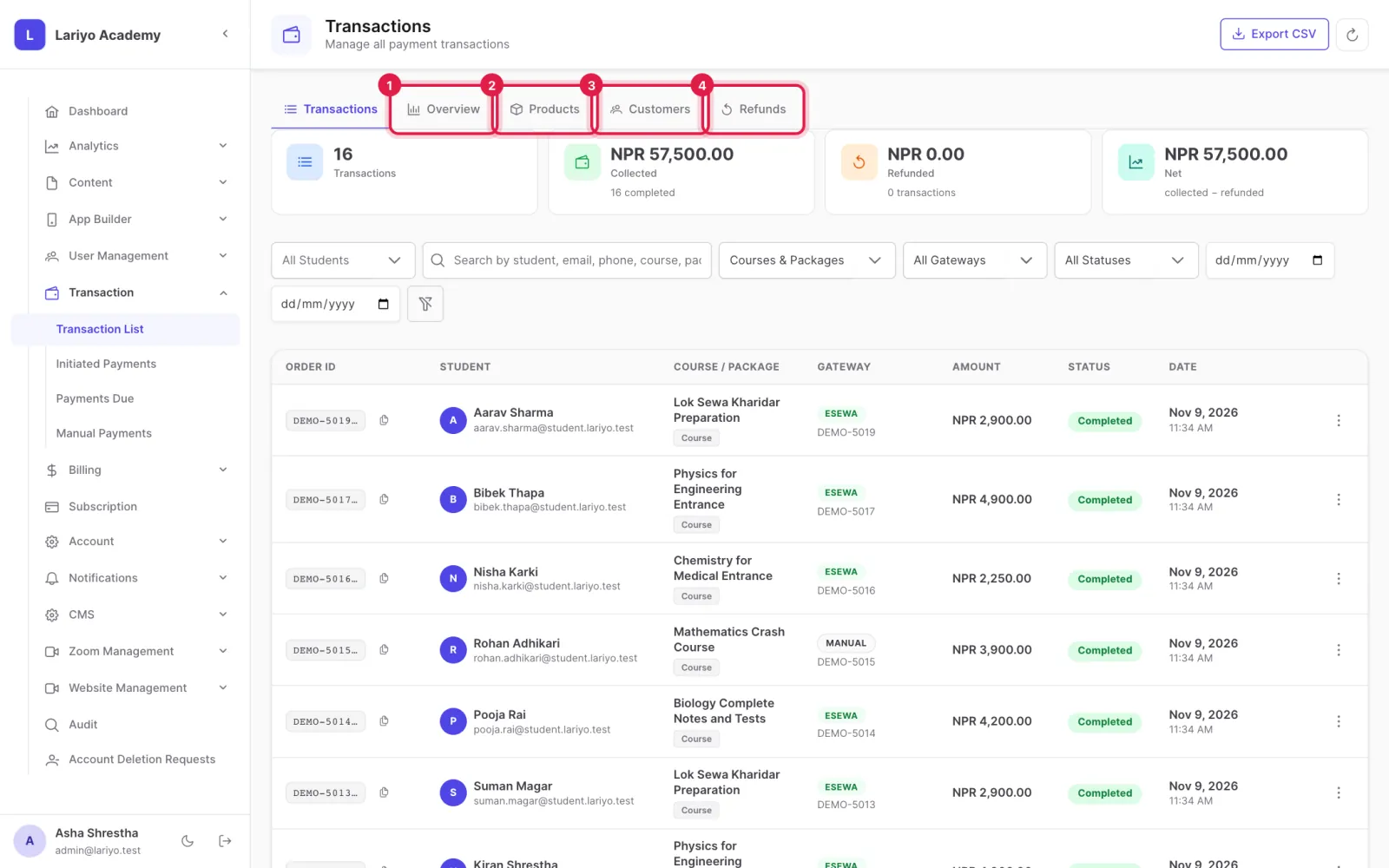
    Step 4 of 5 in the Lariyo admin panel (Transaction → Transaction List): Use the Overview, Products, Customers and Refunds tabs for sales analytics. The control to use is outlined in red.
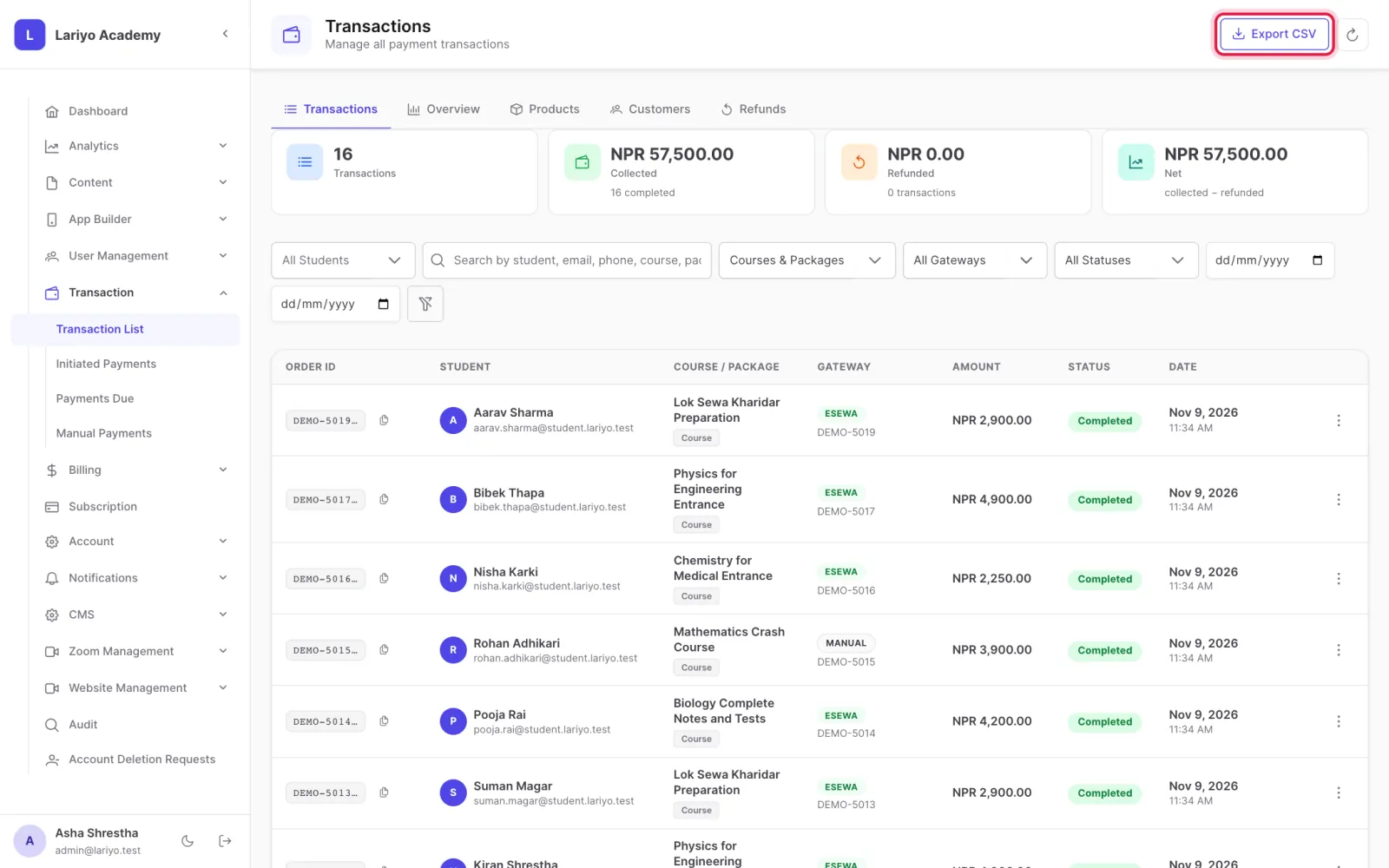
  5. Click Export CSV for a spreadsheet.
    Step 5 of 5 in the Lariyo admin panel (Transaction → Transaction List): Click Export CSV for a spreadsheet. The control to use is outlined in red.

Updated 11 November 2026. Still stuck? Contact us.