

Edit a course's details, prices and students

The course details page holds everything about a course: media, descriptions, platforms, SEO, pricing plans, batches and enrolled students.

Where: Content → Courses → a course

Steps

  1. Open Content → Courses and click a course.
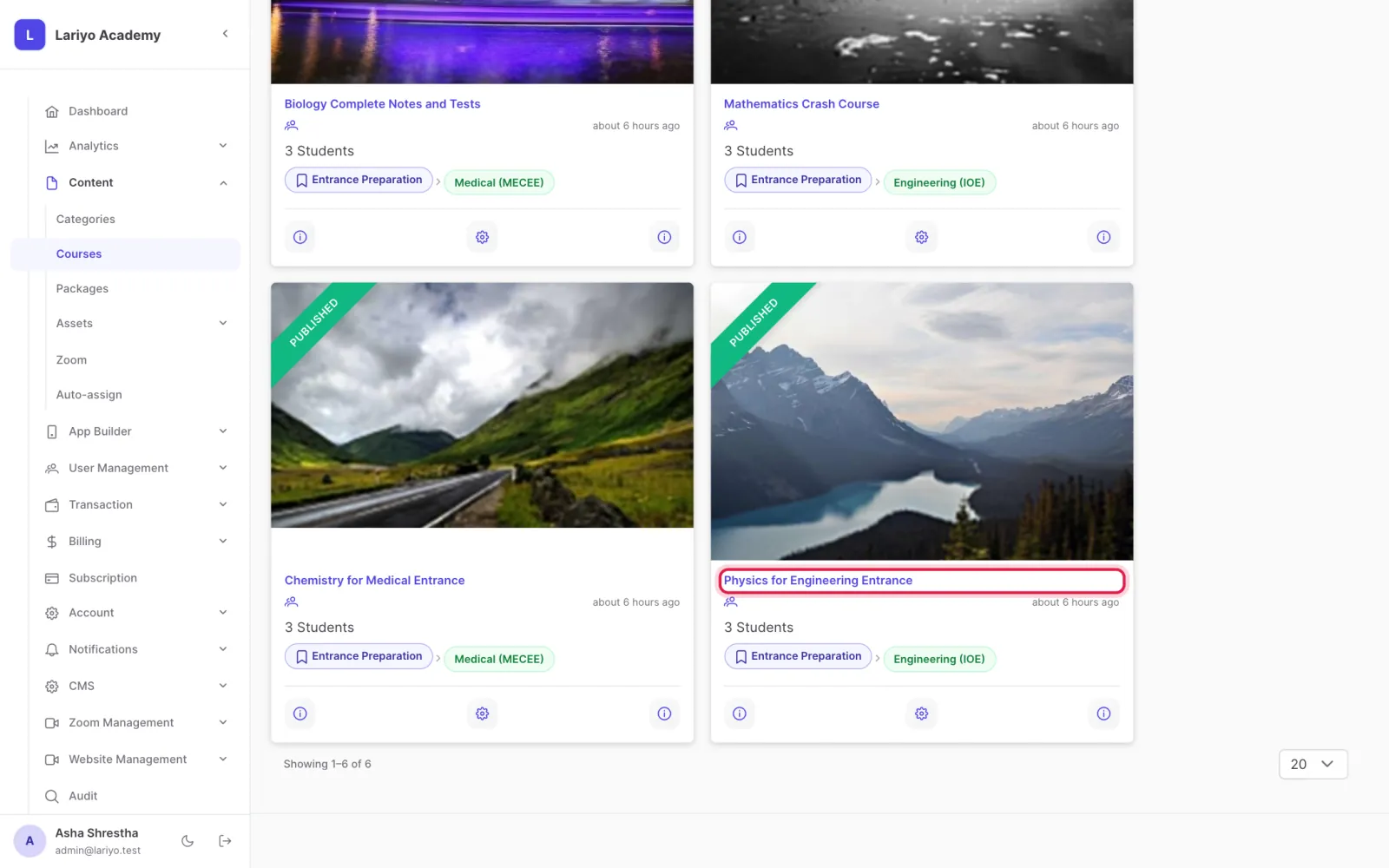
    Step 1 of 7 in the Lariyo admin panel (Content → Courses → a course): Open Content → Courses and click a course. The control to use is outlined in red.
  2. Under Media, upload the thumbnail (3:2), cover image and promo video.
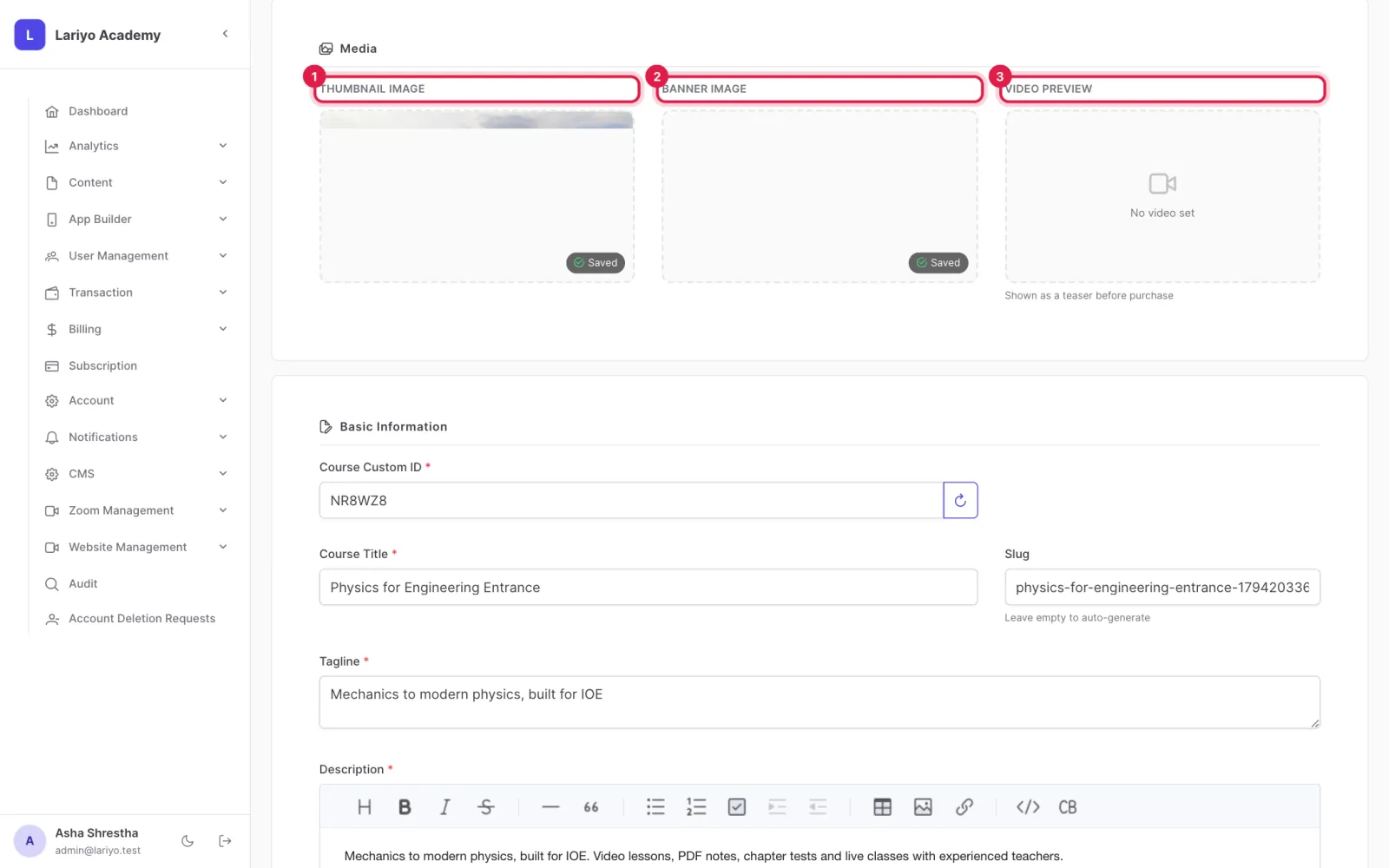
    Step 2 of 7 in the Lariyo admin panel (Content → Courses → a course): Under Media, upload the thumbnail (3:2), cover image and promo video. The control to use is outlined in red.
  3. Fill in Basic information, Curriculum details (what students learn, requirements, who it is for) and SEO.
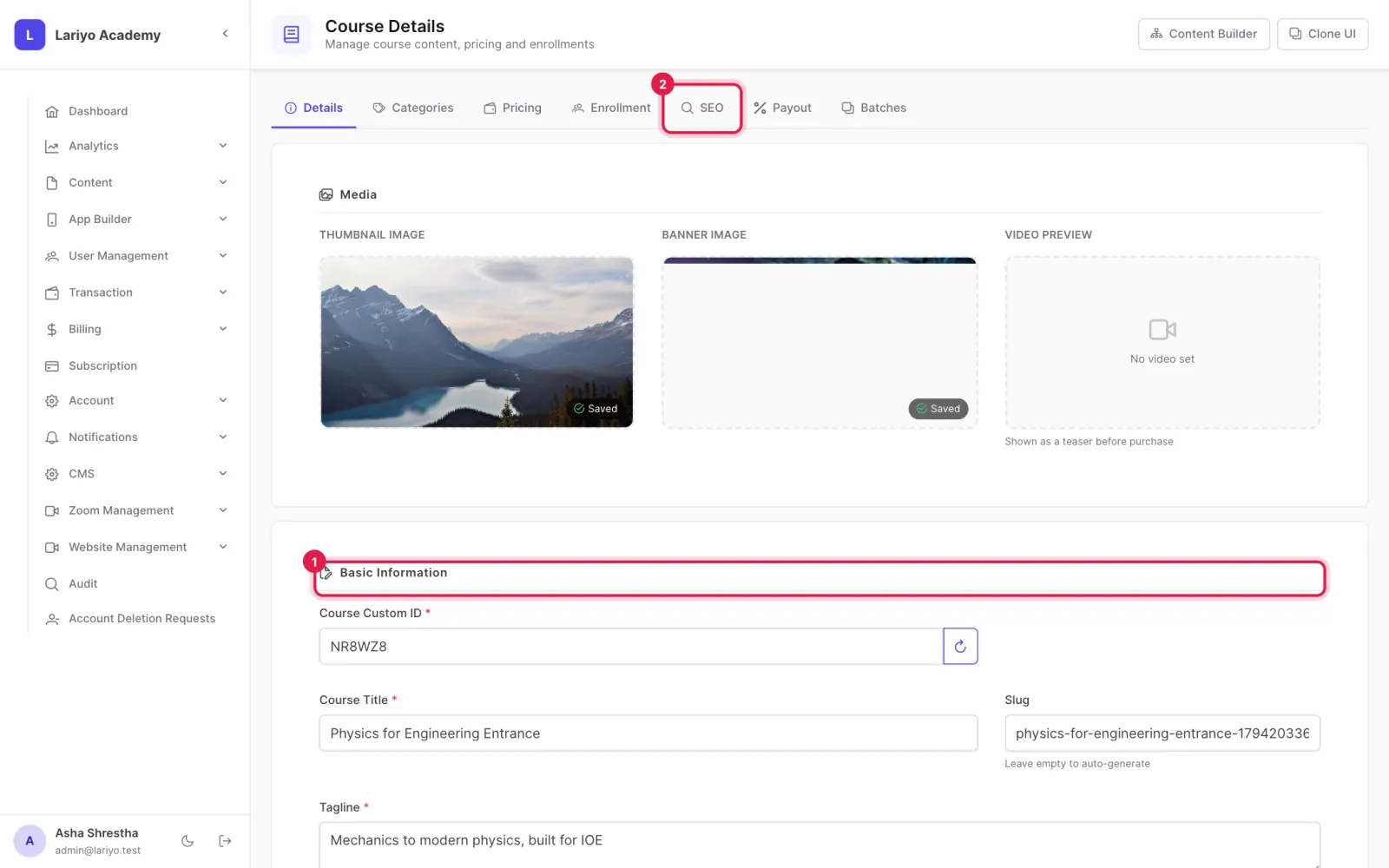
    Step 3 of 7 in the Lariyo admin panel (Content → Courses → a course): Fill in Basic information, Curriculum details (what students learn, requirements, who it is for) and SEO. The control to use is outlined in red.
  4. Under Visibility and platform access, choose website, Android, iOS and desktop.
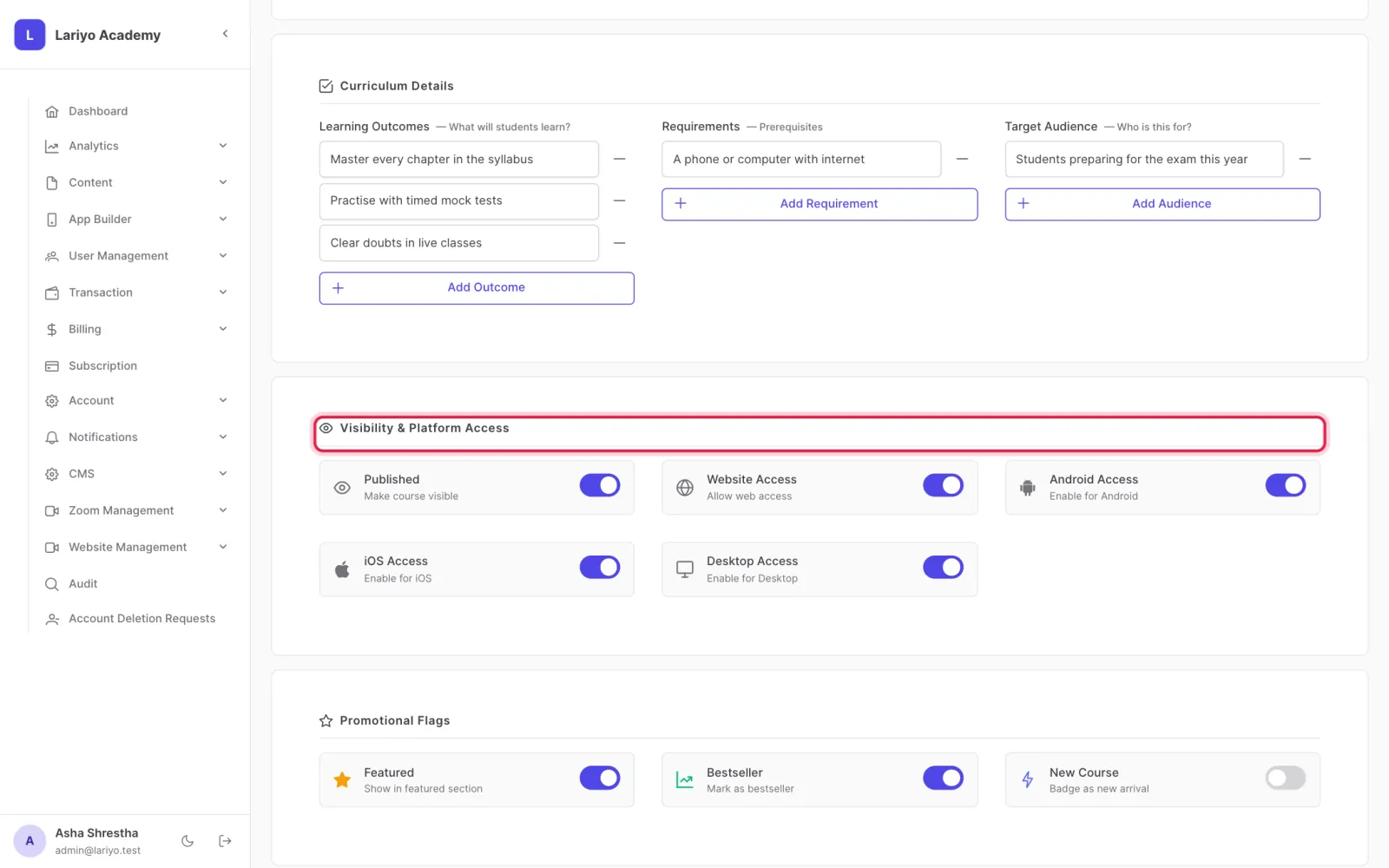
    Step 4 of 7 in the Lariyo admin panel (Content → Courses → a course): Under Visibility and platform access, choose website, Android, iOS and desktop. The control to use is outlined in red.
  5. Add pricing plans: one-time, subscription or free, with list and discounted price, payment gateways and how long access lasts.
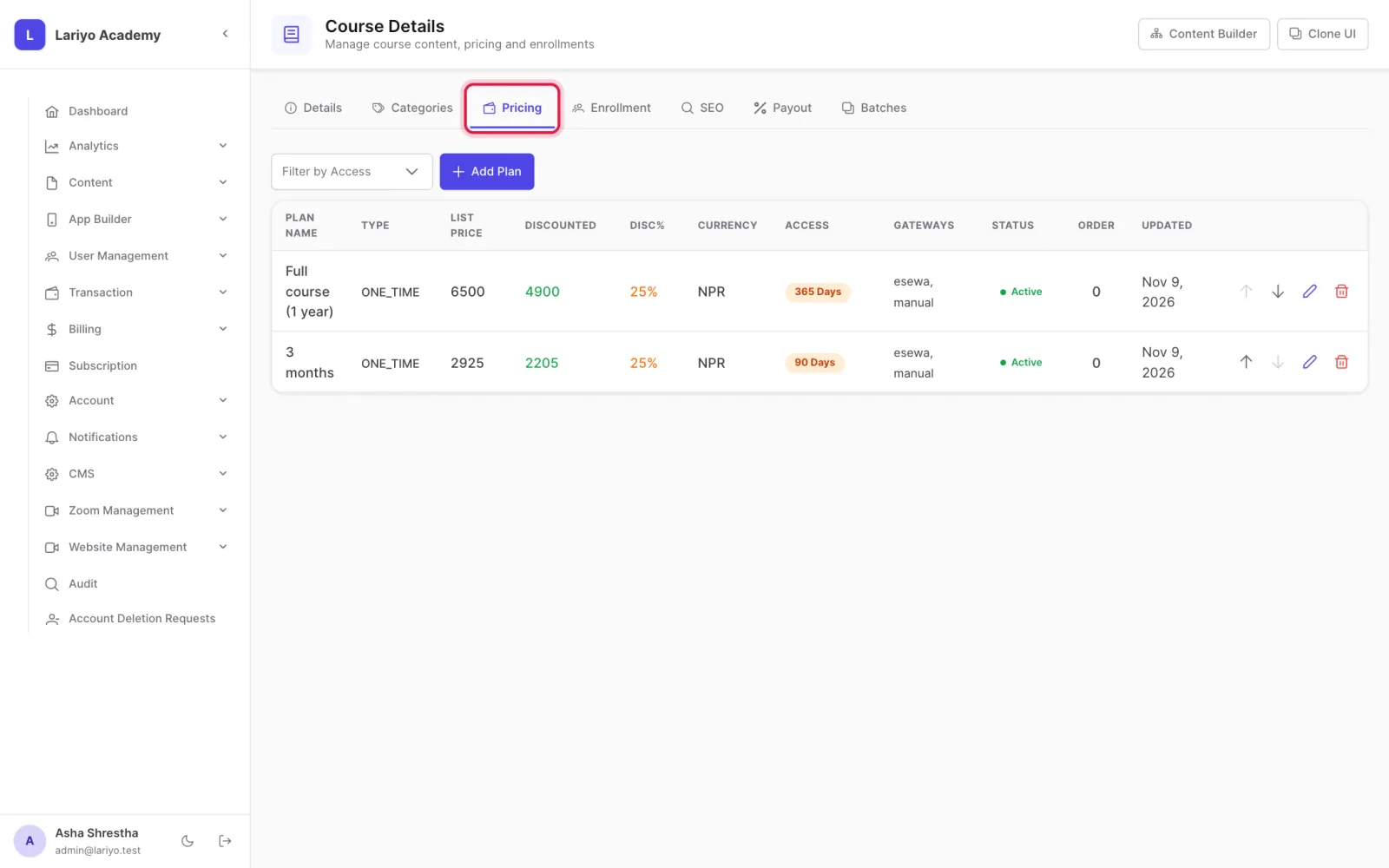
    Step 5 of 7 in the Lariyo admin panel (Content → Courses → a course): Add pricing plans: one-time, subscription or free, with list and discounted price, payment gateways and how long access lasts. The control to use is outlined in red.
  6. Set instructor revenue shares under Payout configuration.
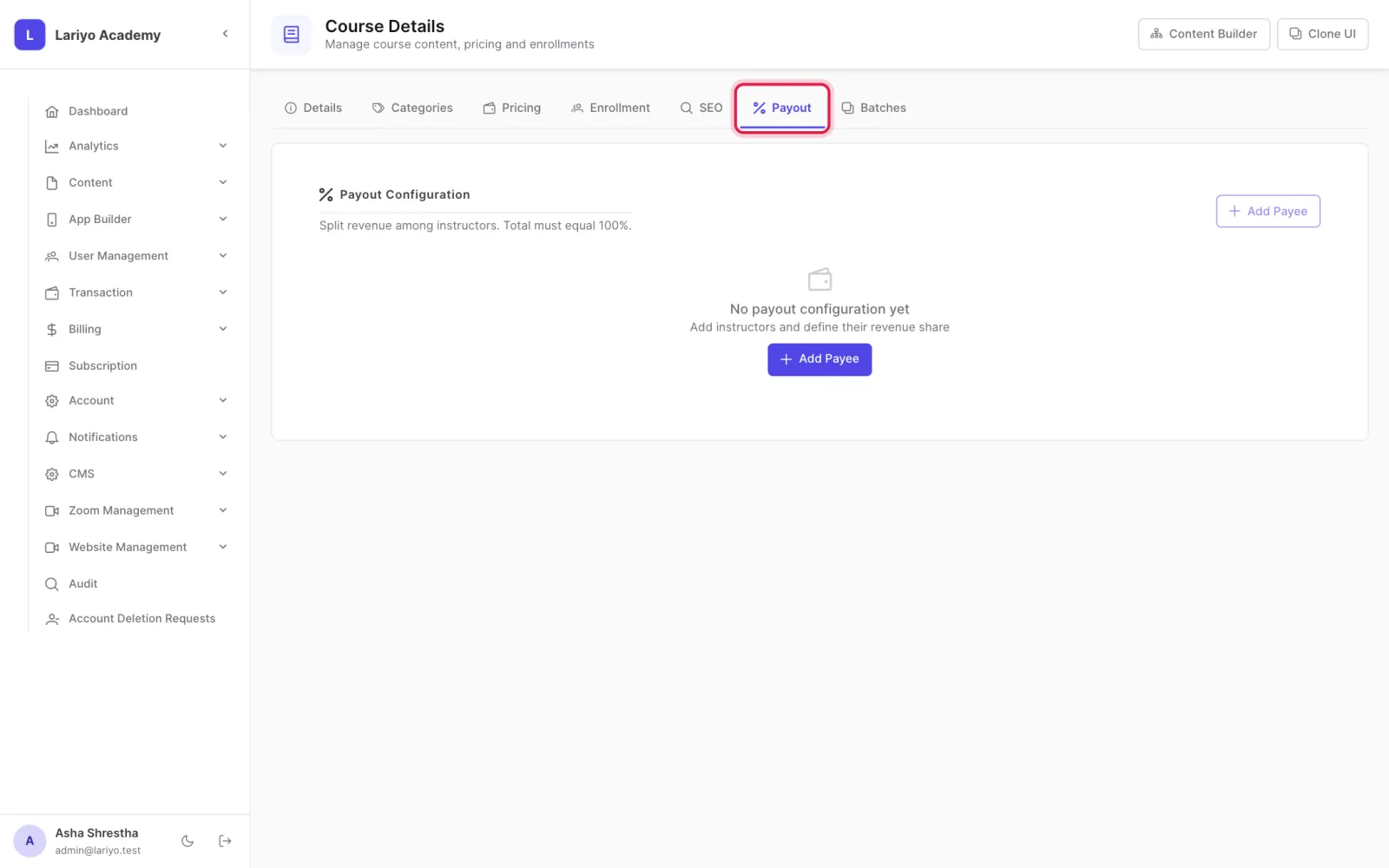
    Step 6 of 7 in the Lariyo admin panel (Content → Courses → a course): Set instructor revenue shares under Payout configuration. The control to use is outlined in red.
  7. See every enrolled student with what they paid, what remains, due dates and progress.
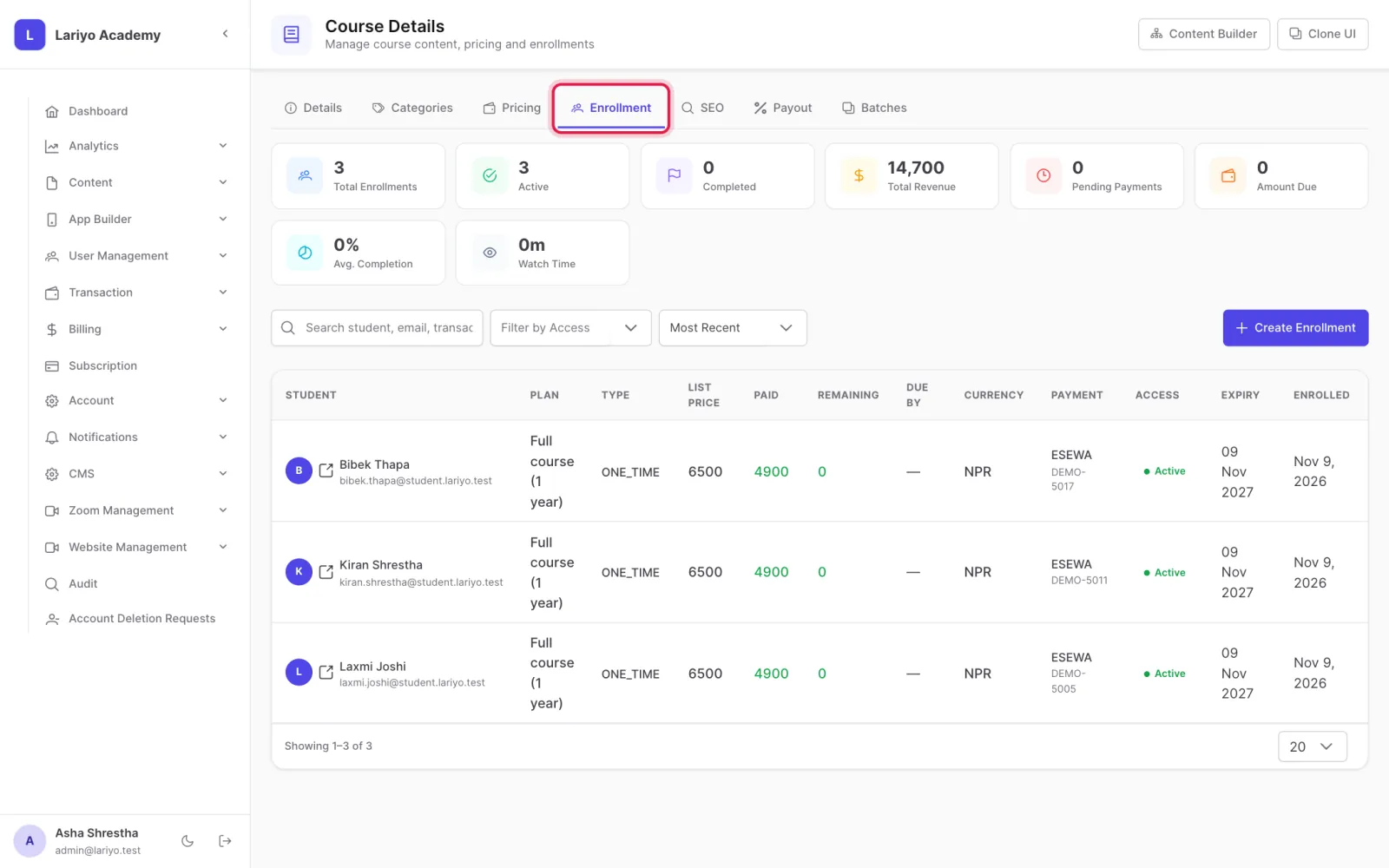
    Step 7 of 7 in the Lariyo admin panel (Content → Courses → a course): See every enrolled student with what they paid, what remains, due dates and progress. The control to use is outlined in red.

Tips

Access can last forever, a number of days, until a fixed date, or a number of hours of video watched.

A course needs at least one active pricing plan before students can buy it.

Updated 11 November 2026. Still stuck? Contact us.