
Send a push notification campaign

A campaign sends a push notification to the students you choose, now or at a set time.

Where: Notifications → Campaigns

Steps

  1. Open Notifications → Campaigns and click New Campaign.
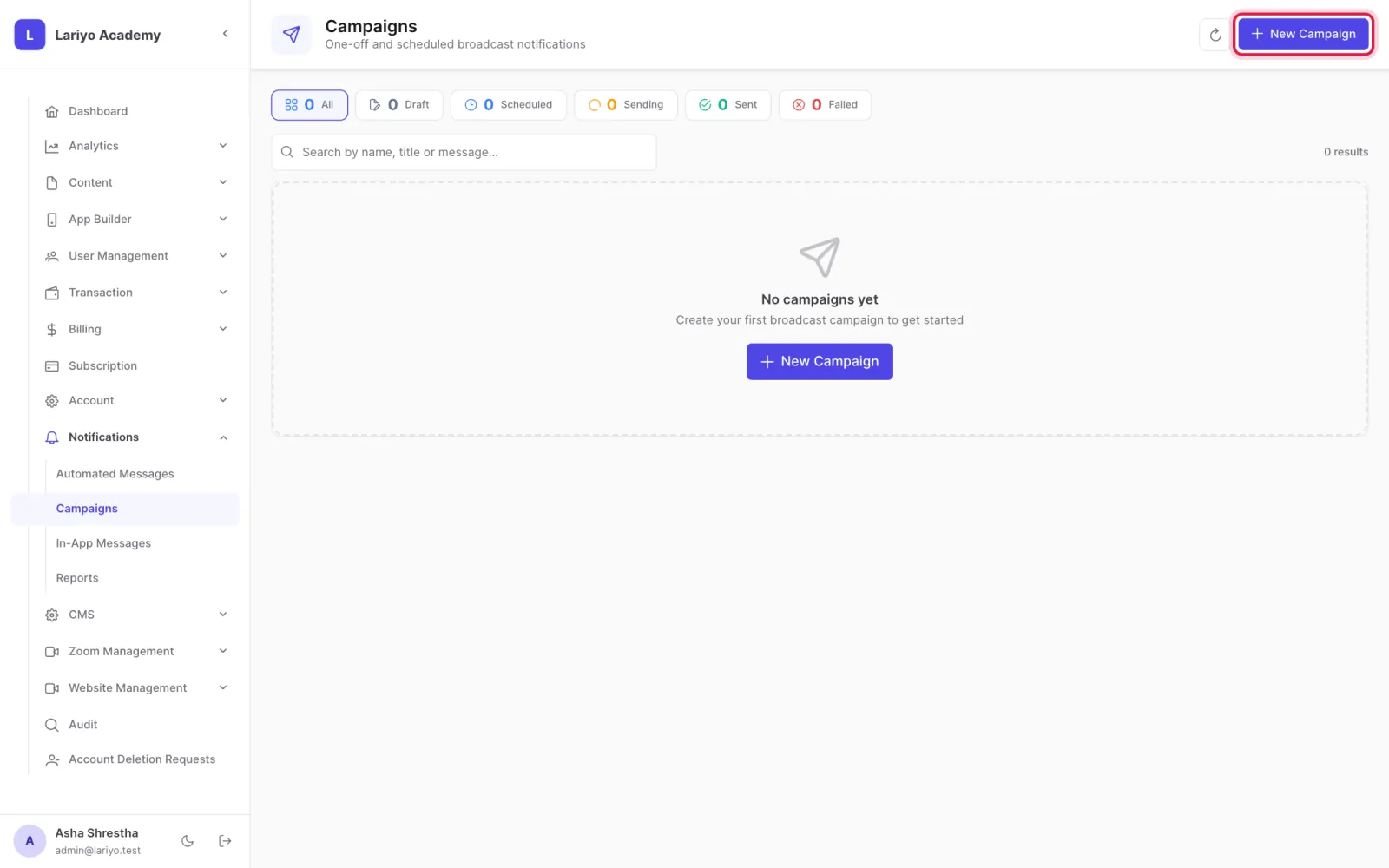
    Step 1 of 6 in the Lariyo admin panel (Notifications → Campaigns): Open Notifications → Campaigns and click New Campaign. The control to use is outlined in red.
  2. Name it, and write the notification title and body.
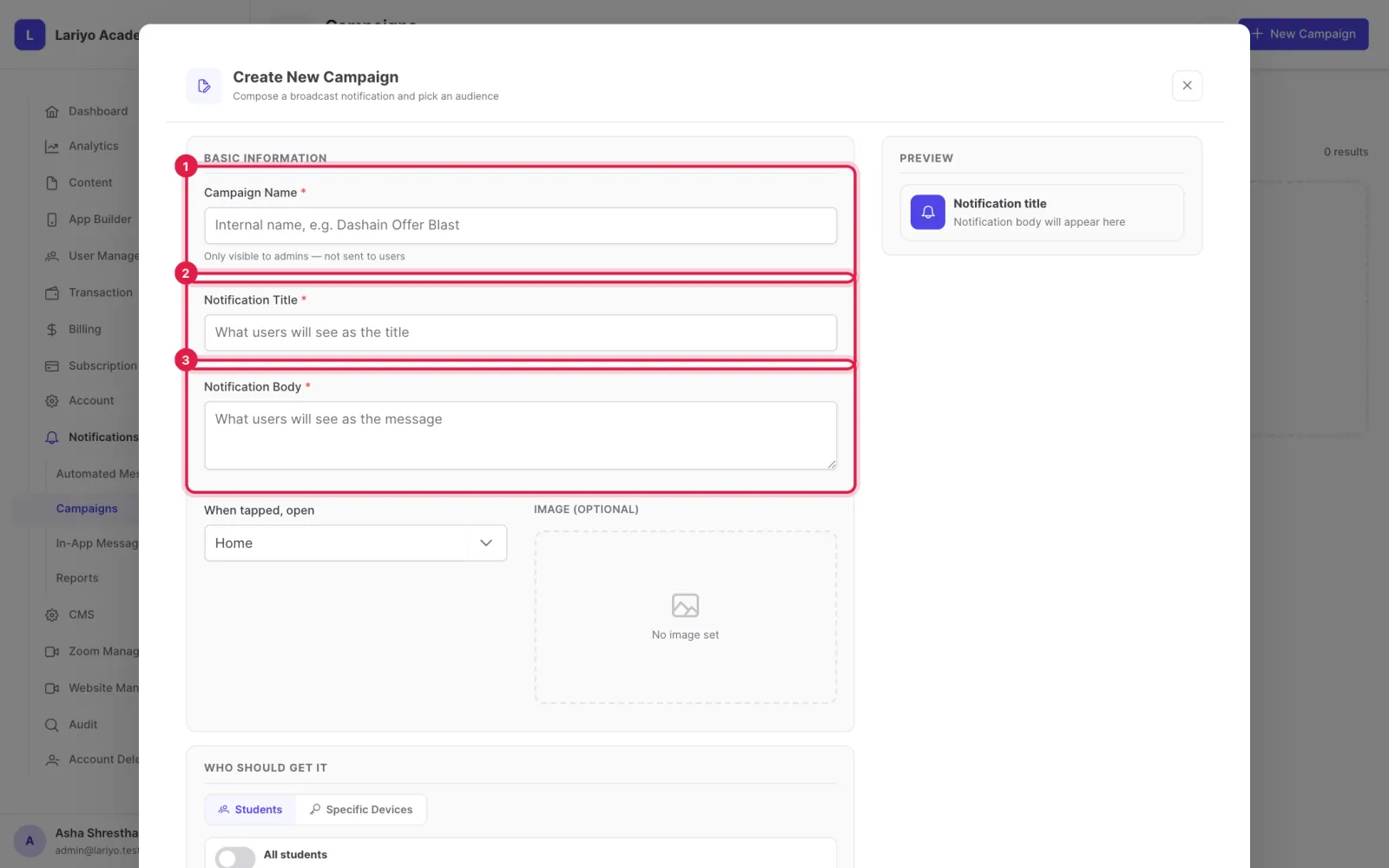
    Step 2 of 6 in the Lariyo admin panel (Notifications → Campaigns): Name it, and write the notification title and body. The control to use is outlined in red.
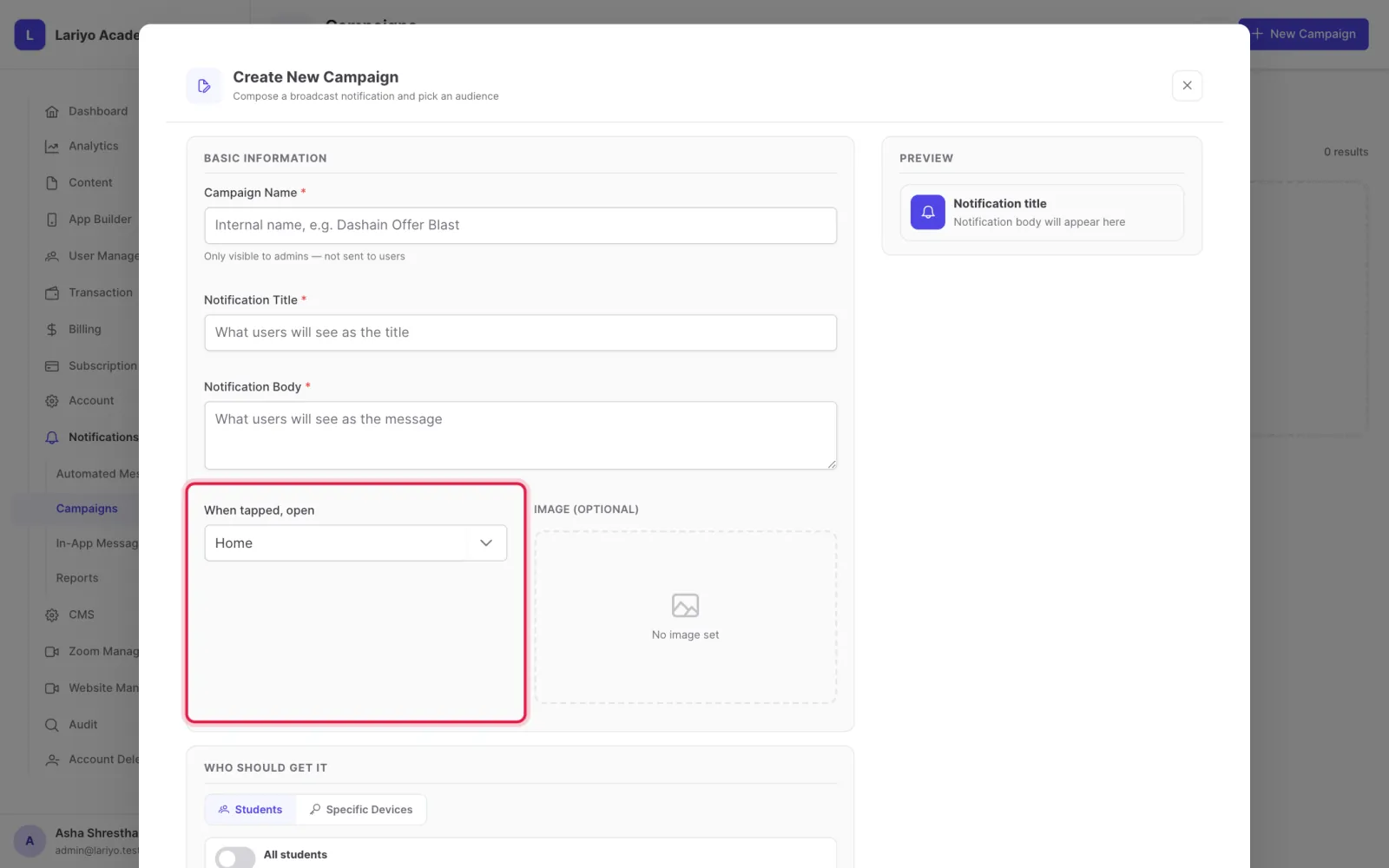
  3. Choose what opens when it is tapped.
    Step 3 of 6 in the Lariyo admin panel (Notifications → Campaigns): Choose what opens when it is tapped. The control to use is outlined in red.
  4. Choose the audience: students by course, package or other filters, or specific devices.
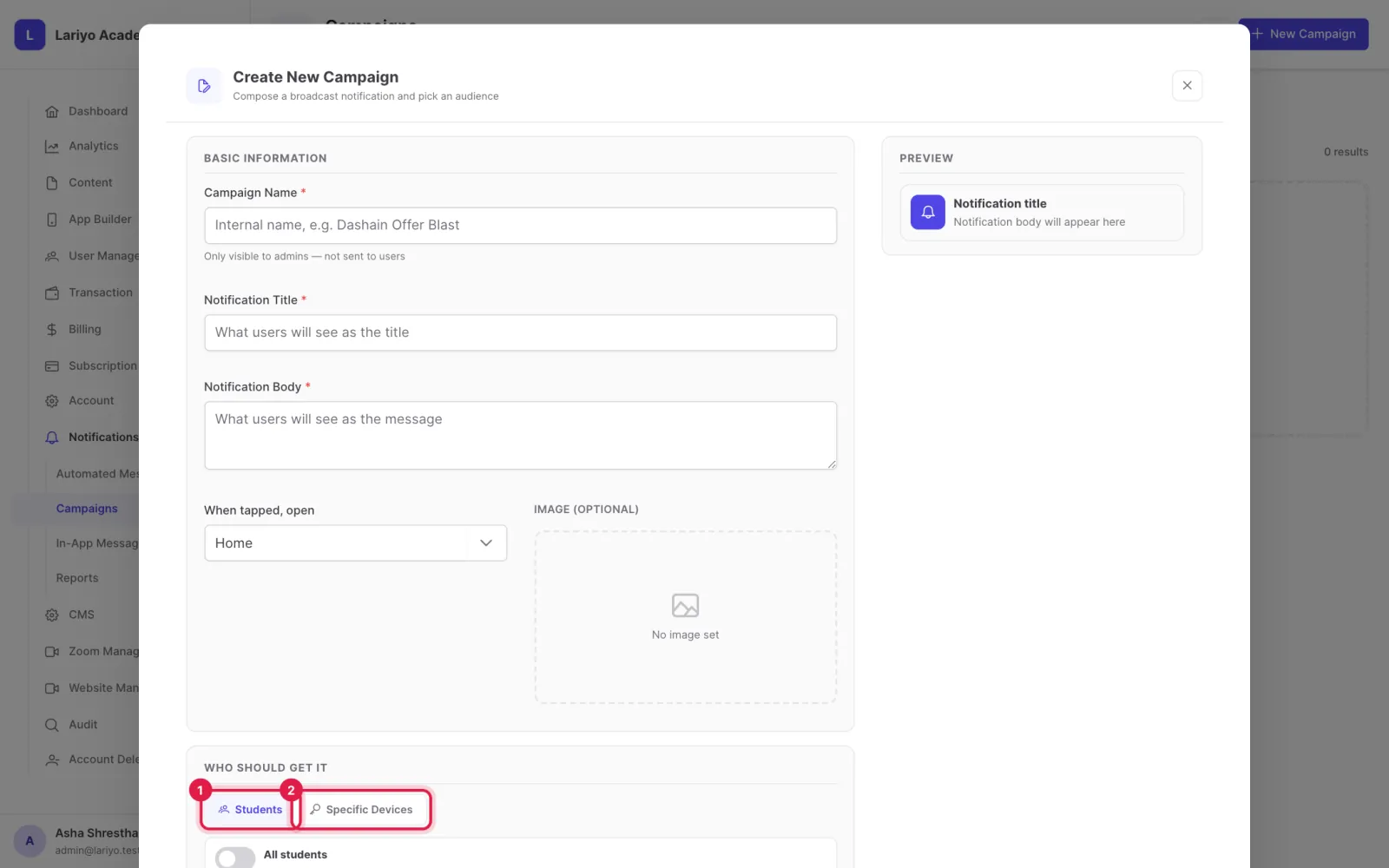
    Step 4 of 6 in the Lariyo admin panel (Notifications → Campaigns): Choose the audience: students by course, package or other filters, or specific devices. The control to use is outlined in red.
  5. Click Send Test to try it on your own device.
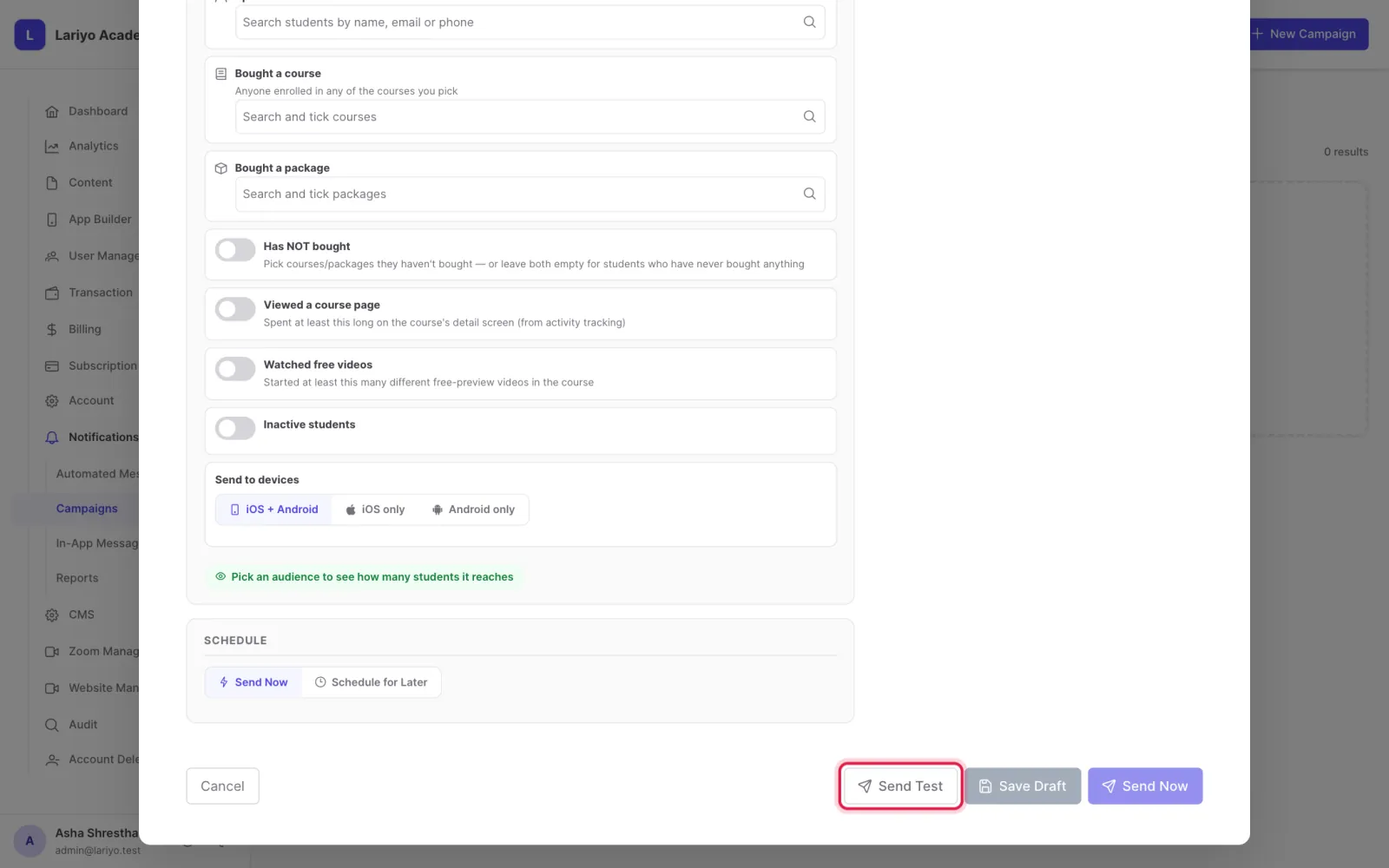
    Step 5 of 6 in the Lariyo admin panel (Notifications → Campaigns): Click Send Test to try it on your own device. The control to use is outlined in red.
  6. Click Send Now, or Schedule for Later and pick a time.
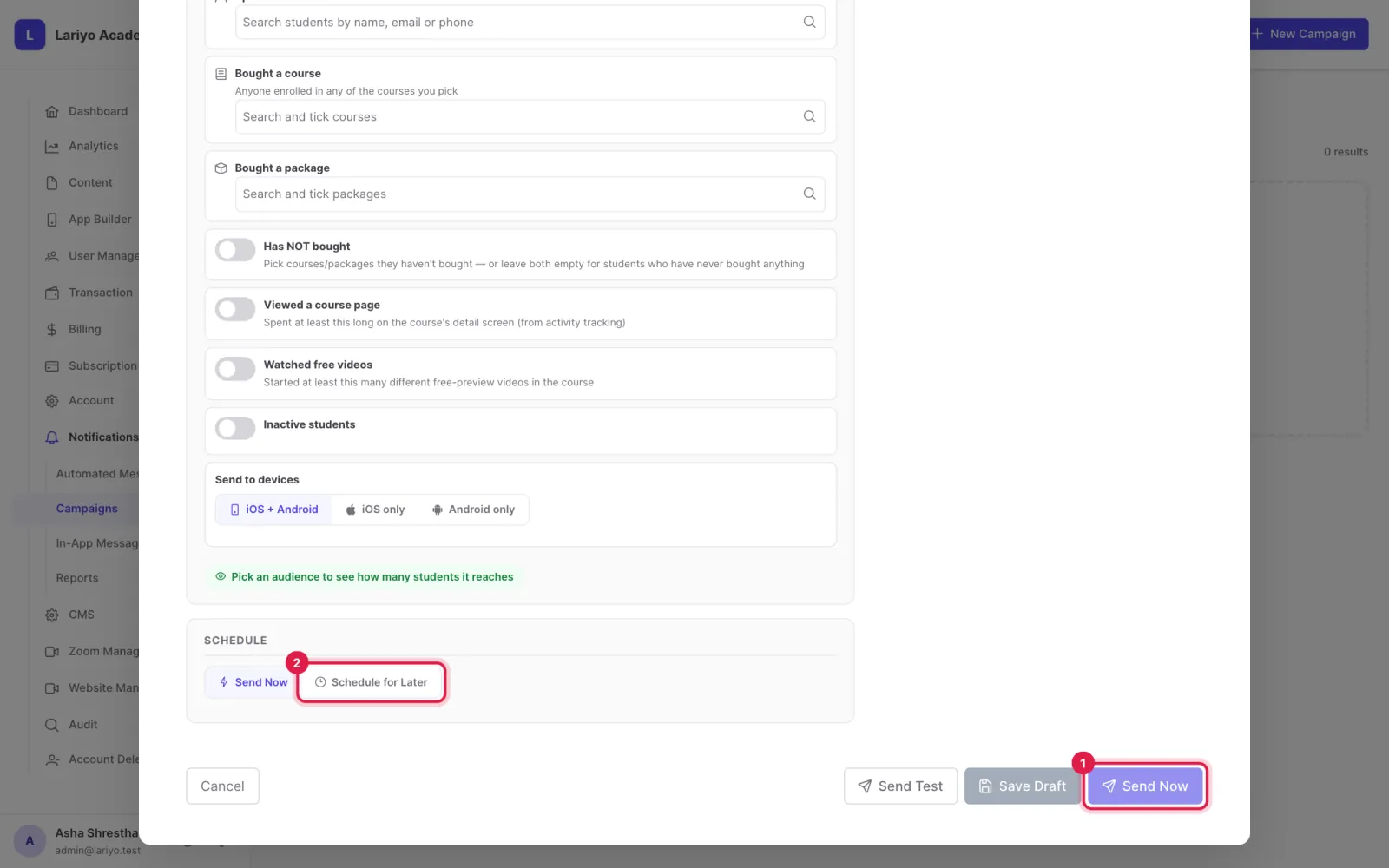
    Step 6 of 6 in the Lariyo admin panel (Notifications → Campaigns): Click Send Now, or Schedule for Later and pick a time. The control to use is outlined in red.

Updated 11 November 2026. Still stuck? Contact us.