

Show in-app messages
In-app messages are banners or pop-ups shown when students open the app.
Where: Notifications → In-App Messages
Steps
-
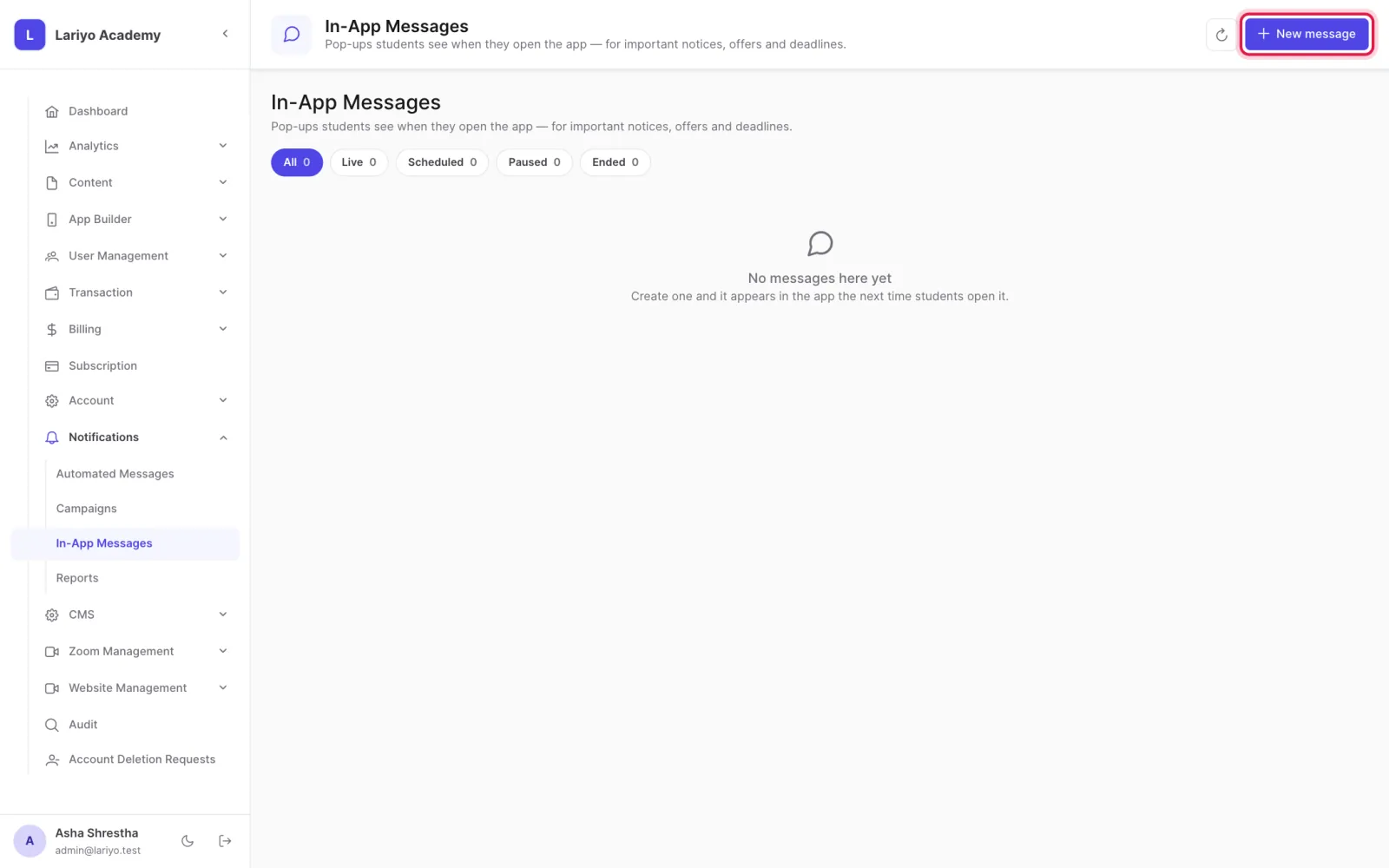
Open Notifications → In-App Messages and click New message.
-
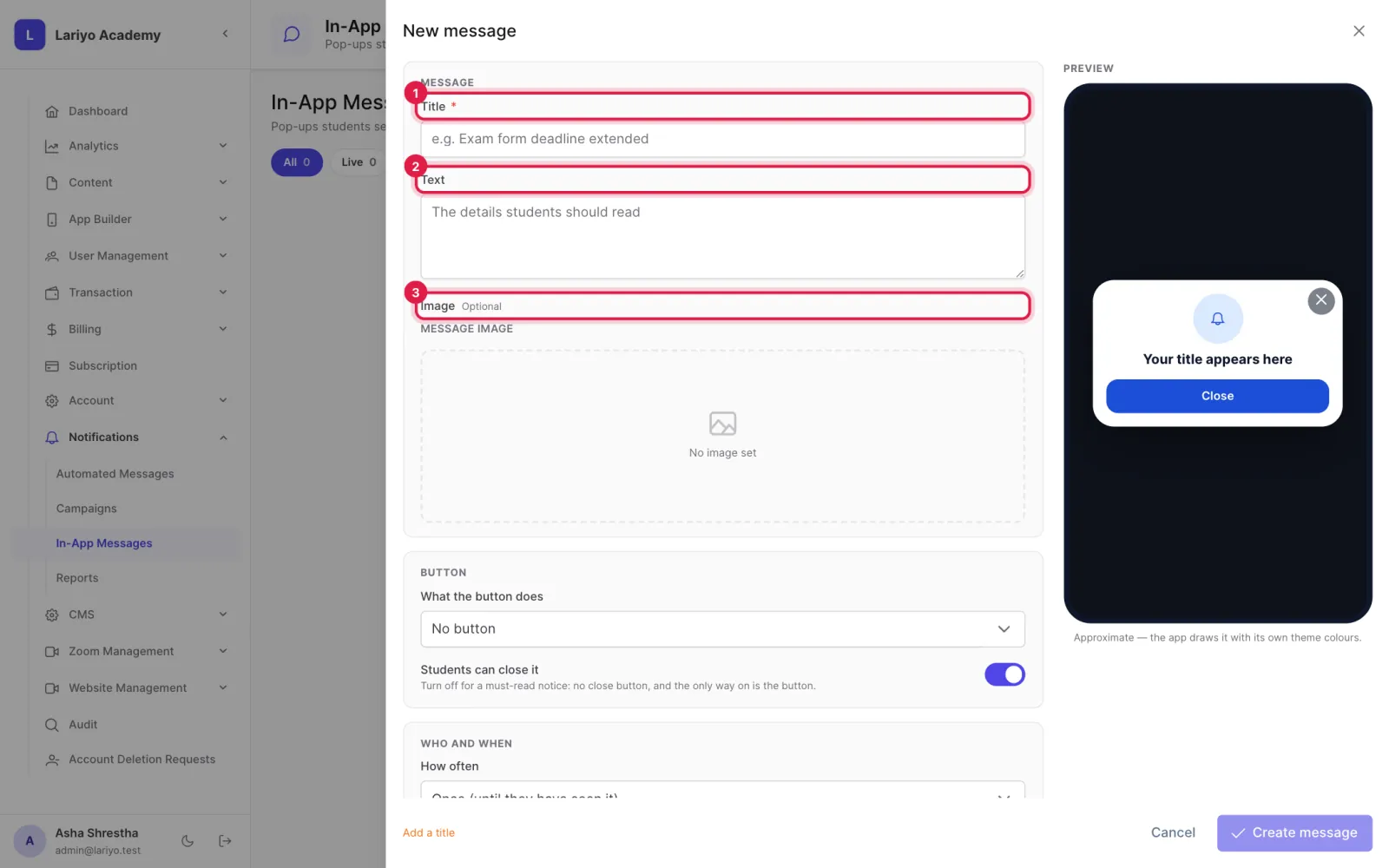
Write the title and text, add an image and choose the layout.
-
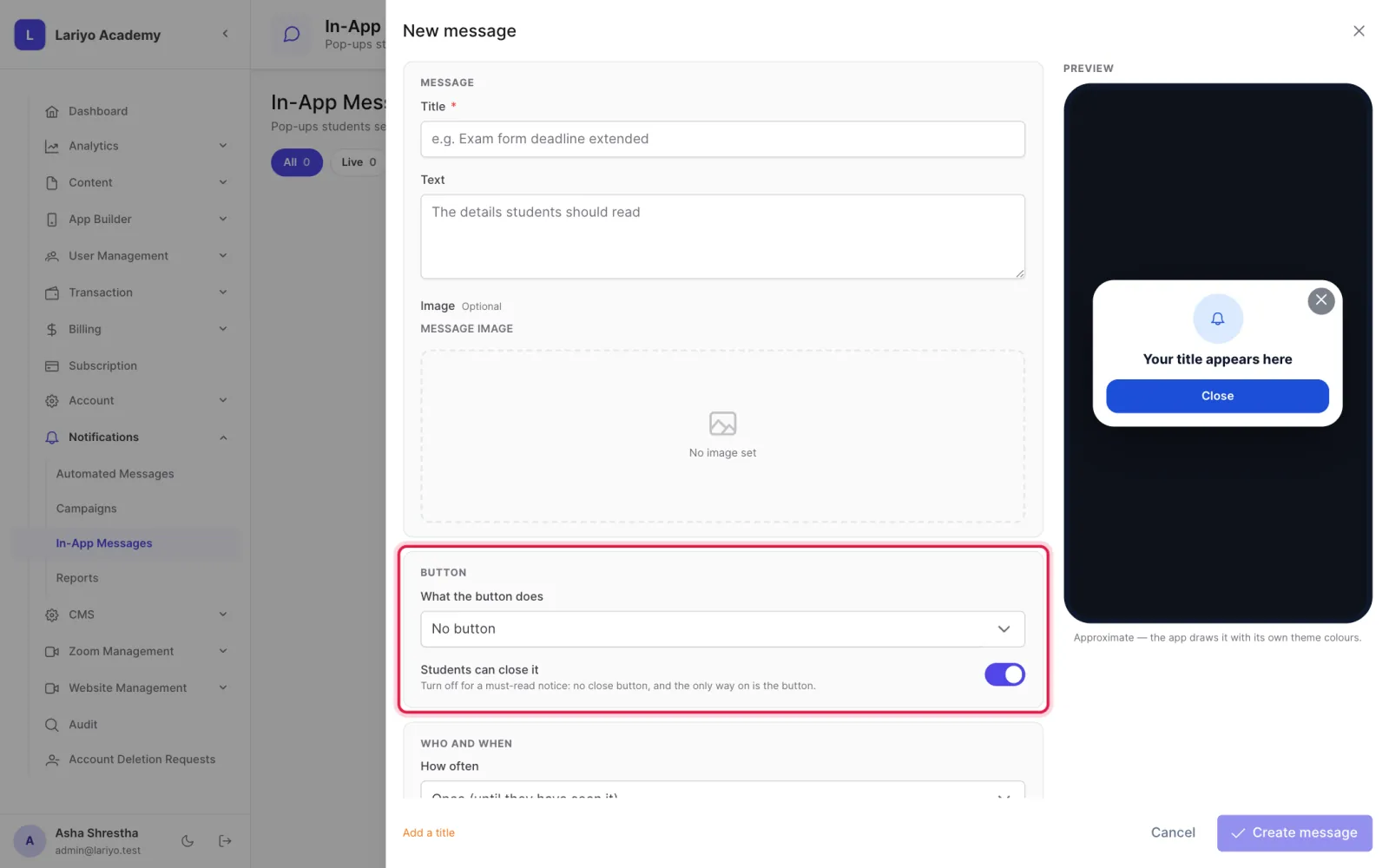
Choose what the button does: open a course, a package or a web link.
-
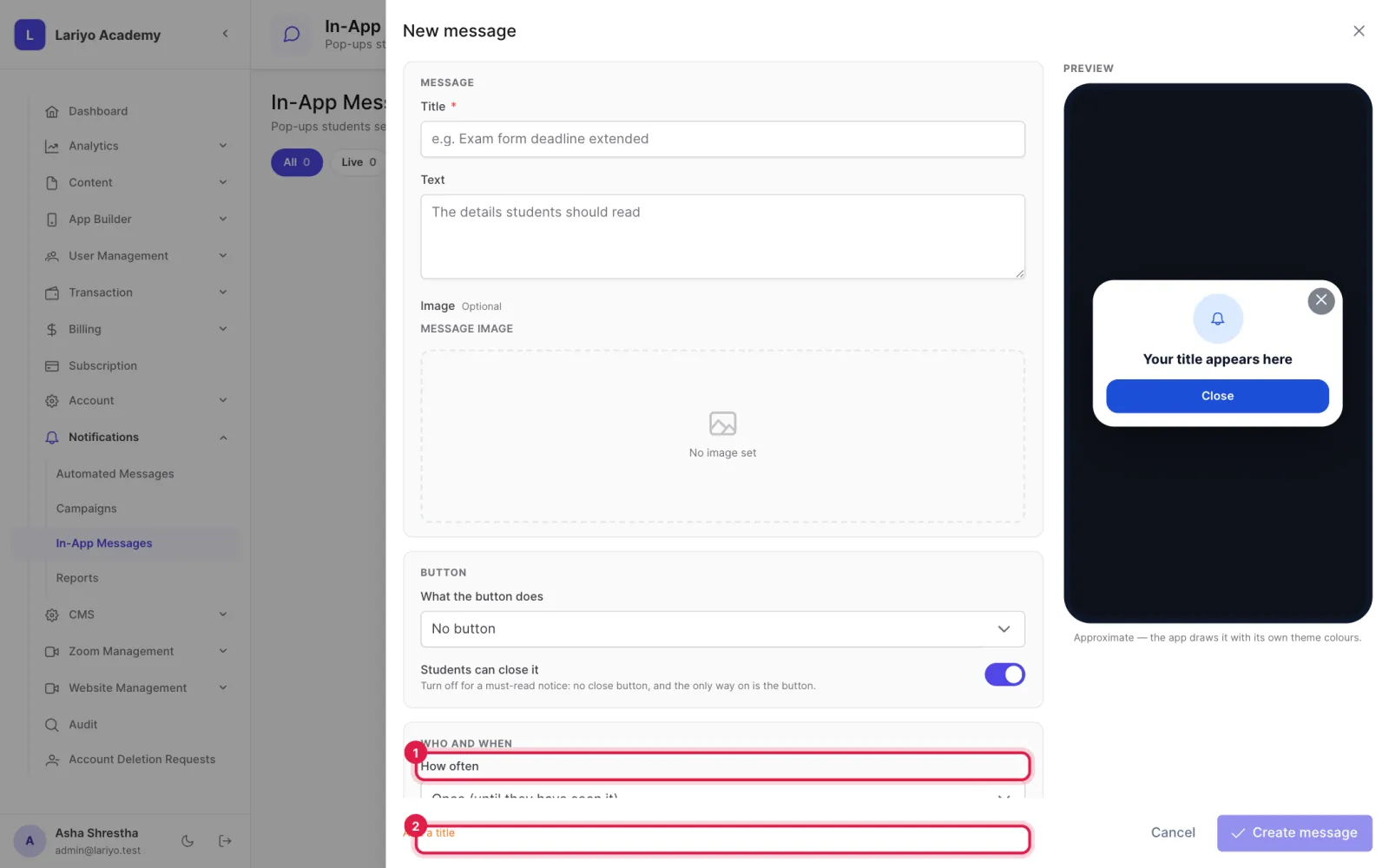
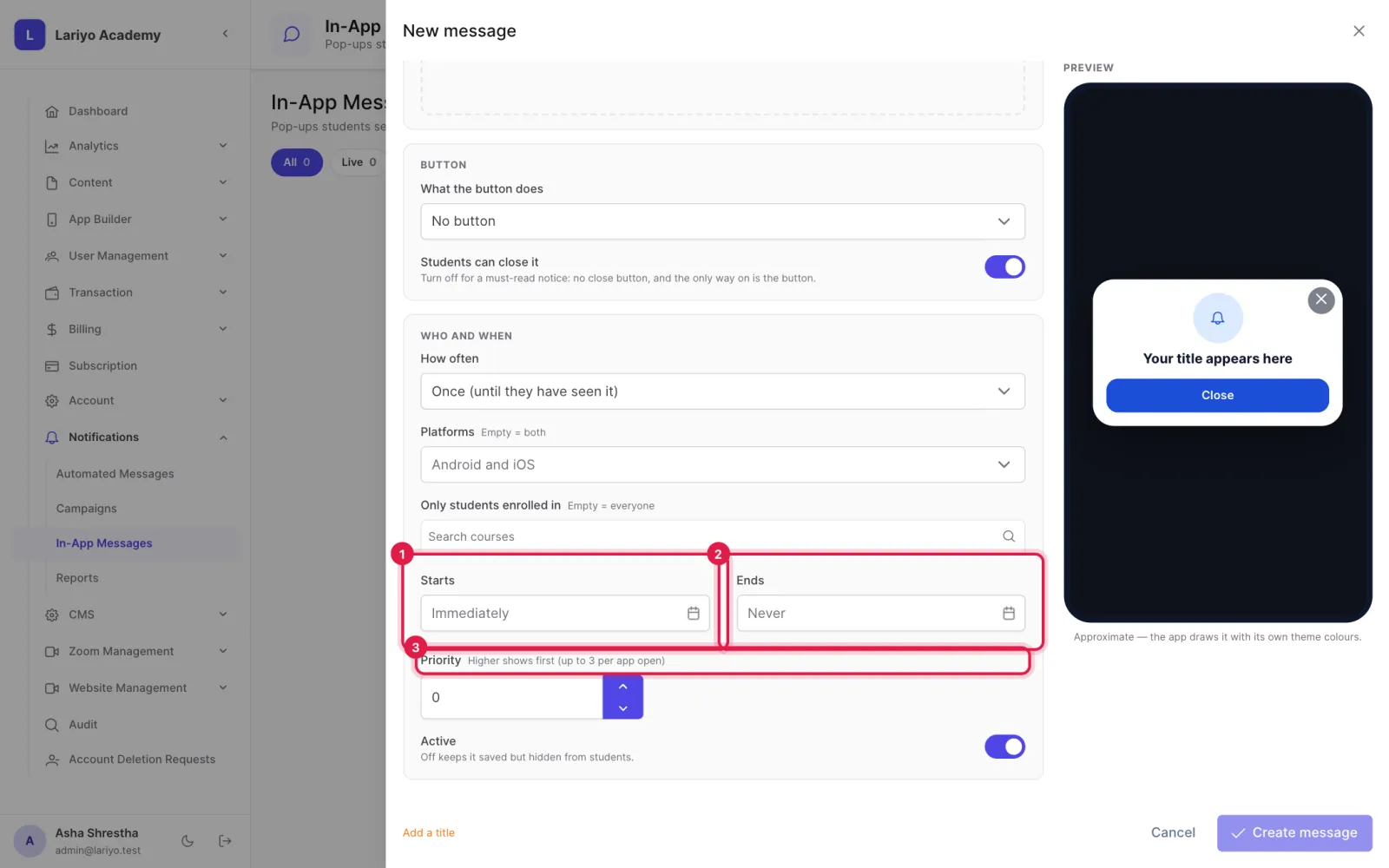
Choose how often it shows, the platforms, and whether only students of certain courses see it.
-
Set the start, end and priority. Up to three messages show per app open.
Updated 11 November 2026. Still stuck? Contact us.