

Connect a Zoom account

Add one or more Zoom accounts with their host users; Lariyo creates meetings and moves students to another account when one is full.

Where: Zoom Management → Accounts

Steps

  1. In Zoom's marketplace, create a Server-to-Server OAuth app and a Meeting SDK app.
  2. Open Zoom Management → Accounts and click New Account.
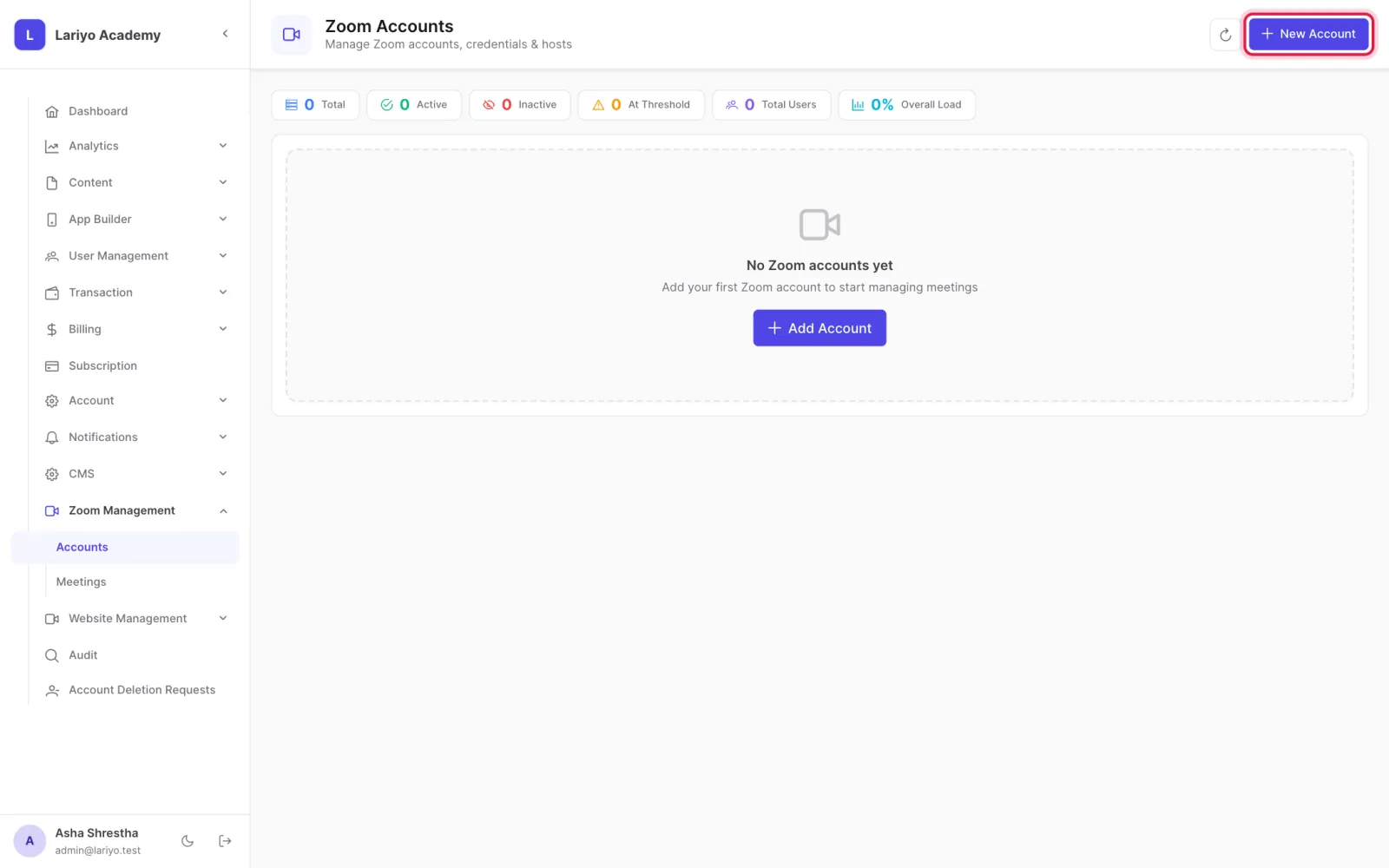
    Step 2 of 5 in the Lariyo admin panel (Zoom Management → Accounts): Open Zoom Management → Accounts and click New Account. The control to use is outlined in red.
  3. Paste the account ID, client ID and secret, SDK client ID and secret, and the webhook secret token.
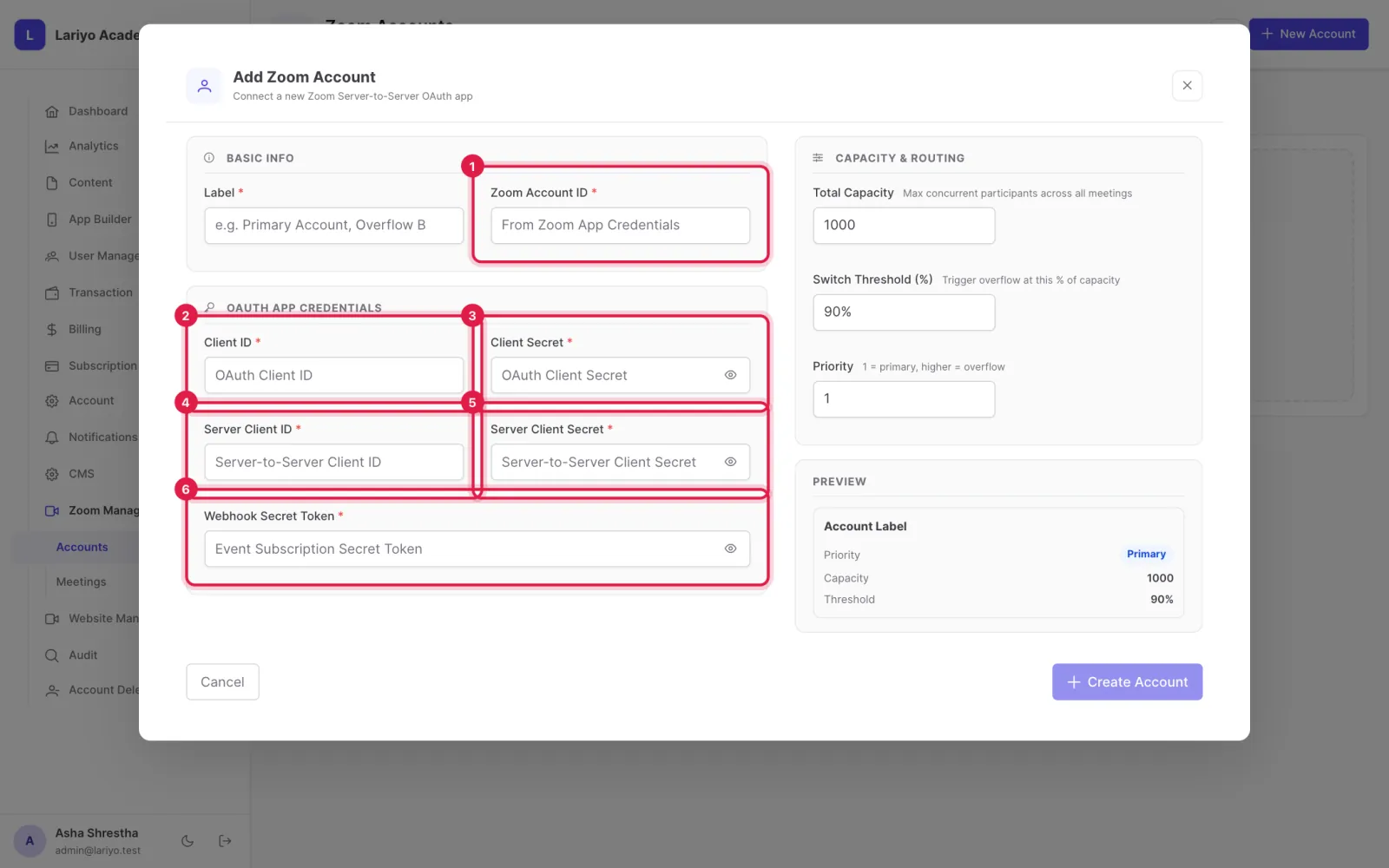
    Step 3 of 5 in the Lariyo admin panel (Zoom Management → Accounts): Paste the account ID, client ID and secret, SDK client ID and secret, and the webhook secret token. The control to use is outlined in red.
  4. Set the switch threshold (the % of capacity at which students go to the next account) and the priority.
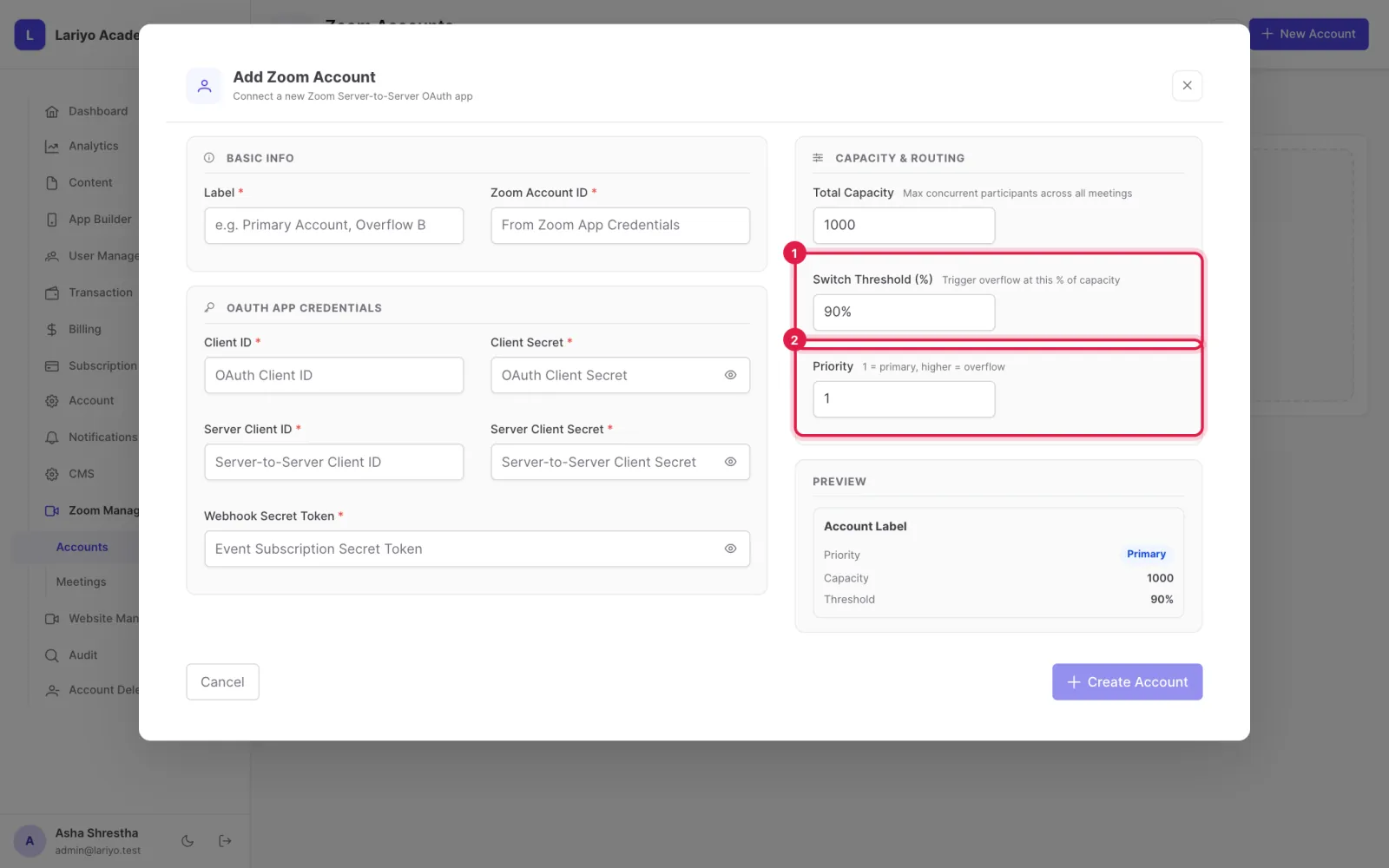
    Step 4 of 5 in the Lariyo admin panel (Zoom Management → Accounts): Set the switch threshold (the % of capacity at which students go to the next account) and the priority. The control to use is outlined in red.
  5. Add host users with their email and meeting capacity.
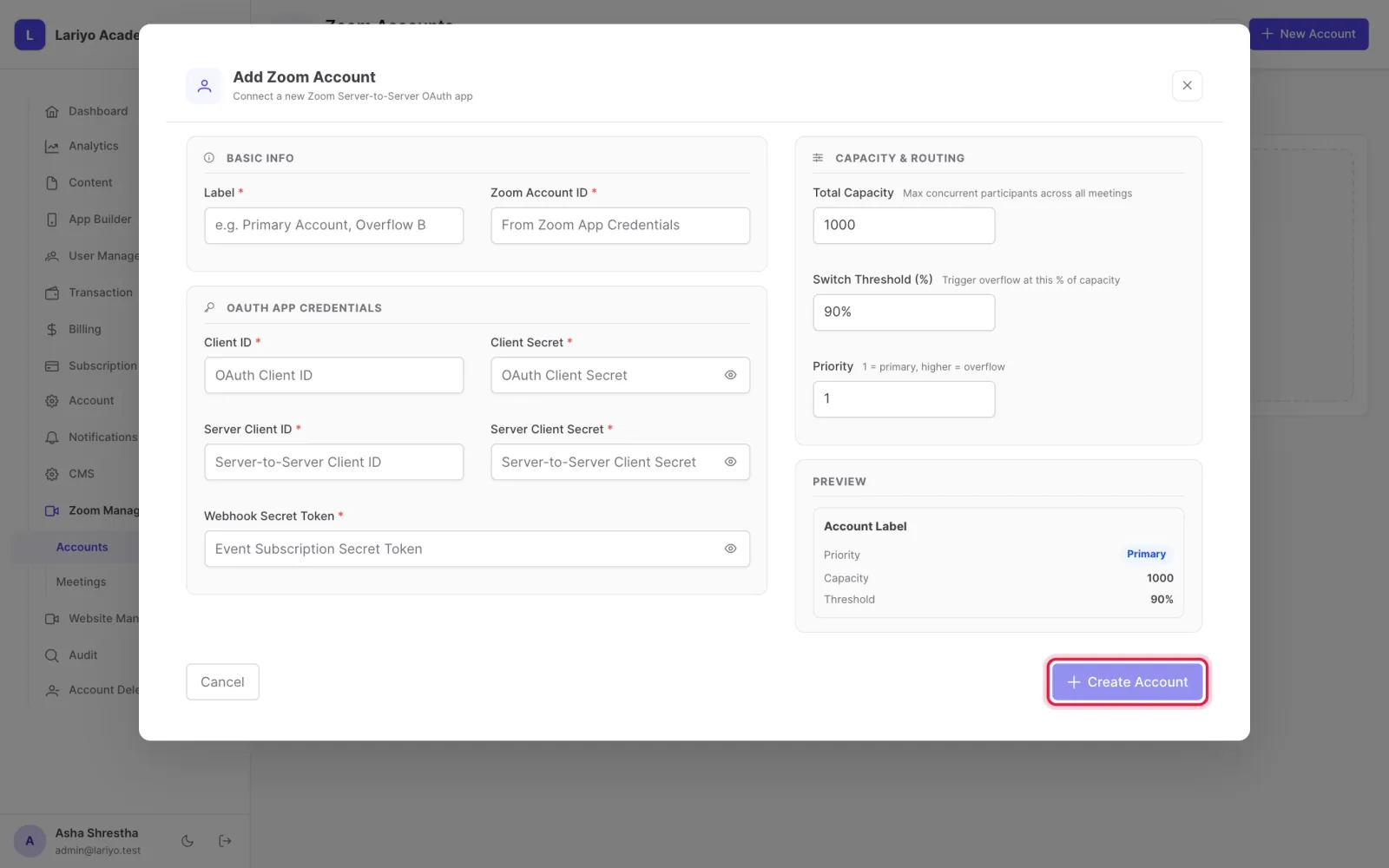
    Step 5 of 5 in the Lariyo admin panel (Zoom Management → Accounts): Add host users with their email and meeting capacity. The control to use is outlined in red.

Updated 11 November 2026. Still stuck? Contact us.