
Upload videos

Videos are uploaded to the library once and turned into encrypted streams in several qualities, then placed in any chapter.

Where: Content → Assets → Videos

Steps

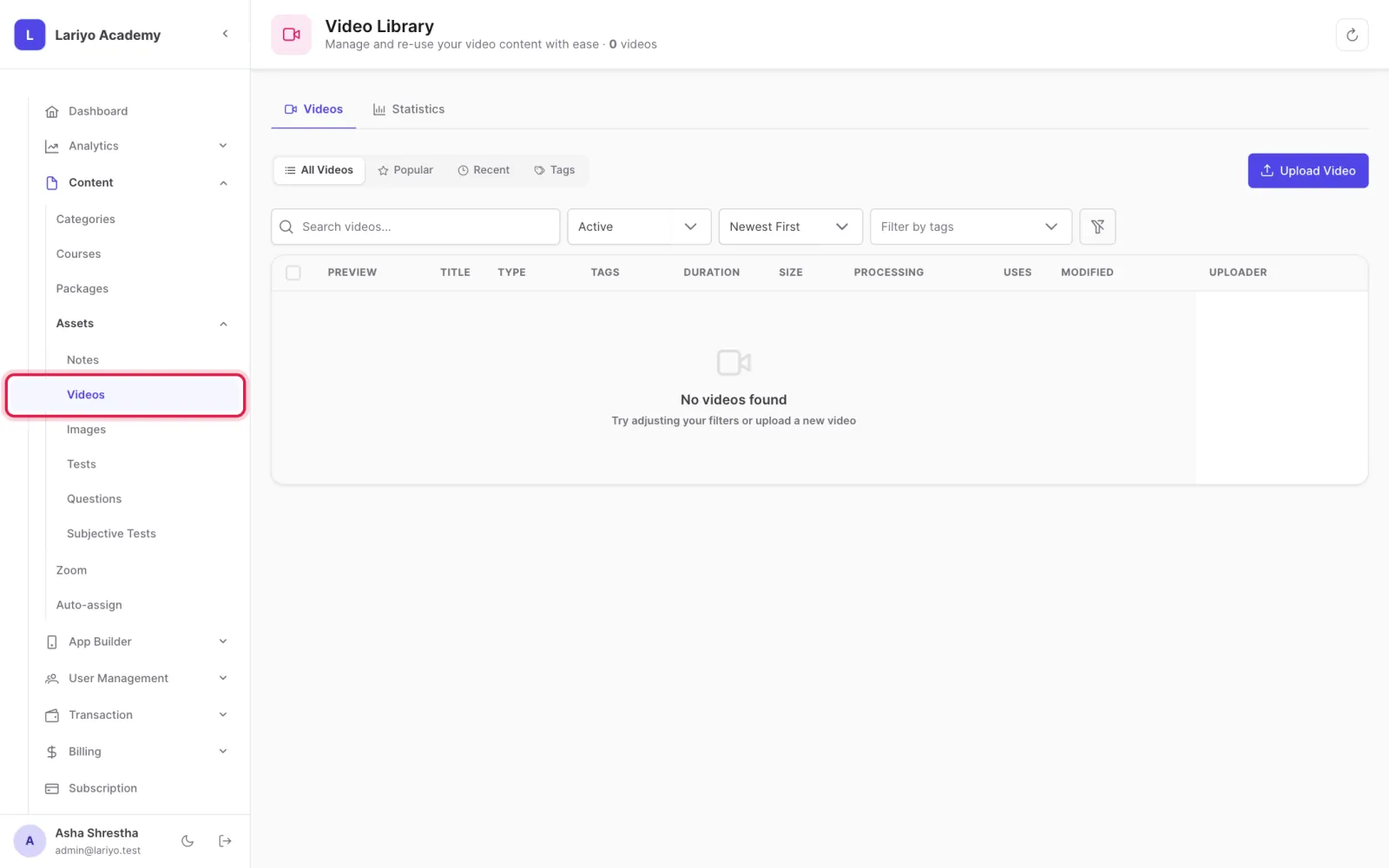
  1. Open Content → Assets → Videos.
    Step 1 of 5 in the Lariyo admin panel (Content → Assets → Videos): Open Content → Assets → Videos. The control to use is outlined in red.
  2. Click Upload Video and choose the file.
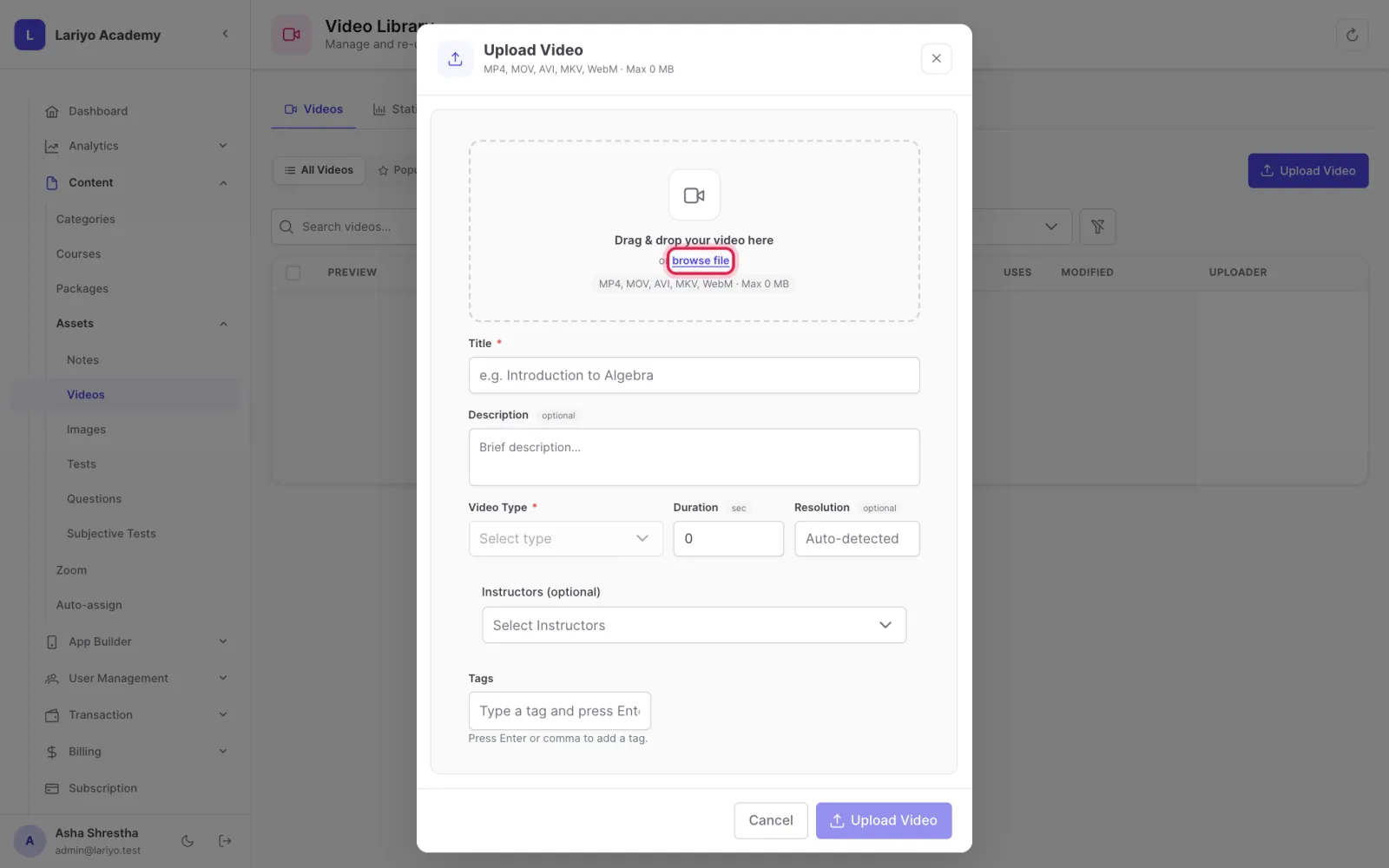
    Step 2 of 5 in the Lariyo admin panel (Content → Assets → Videos): Click Upload Video and choose the file. The control to use is outlined in red.
  3. Enter a title, and optionally a description, instructors and tags.
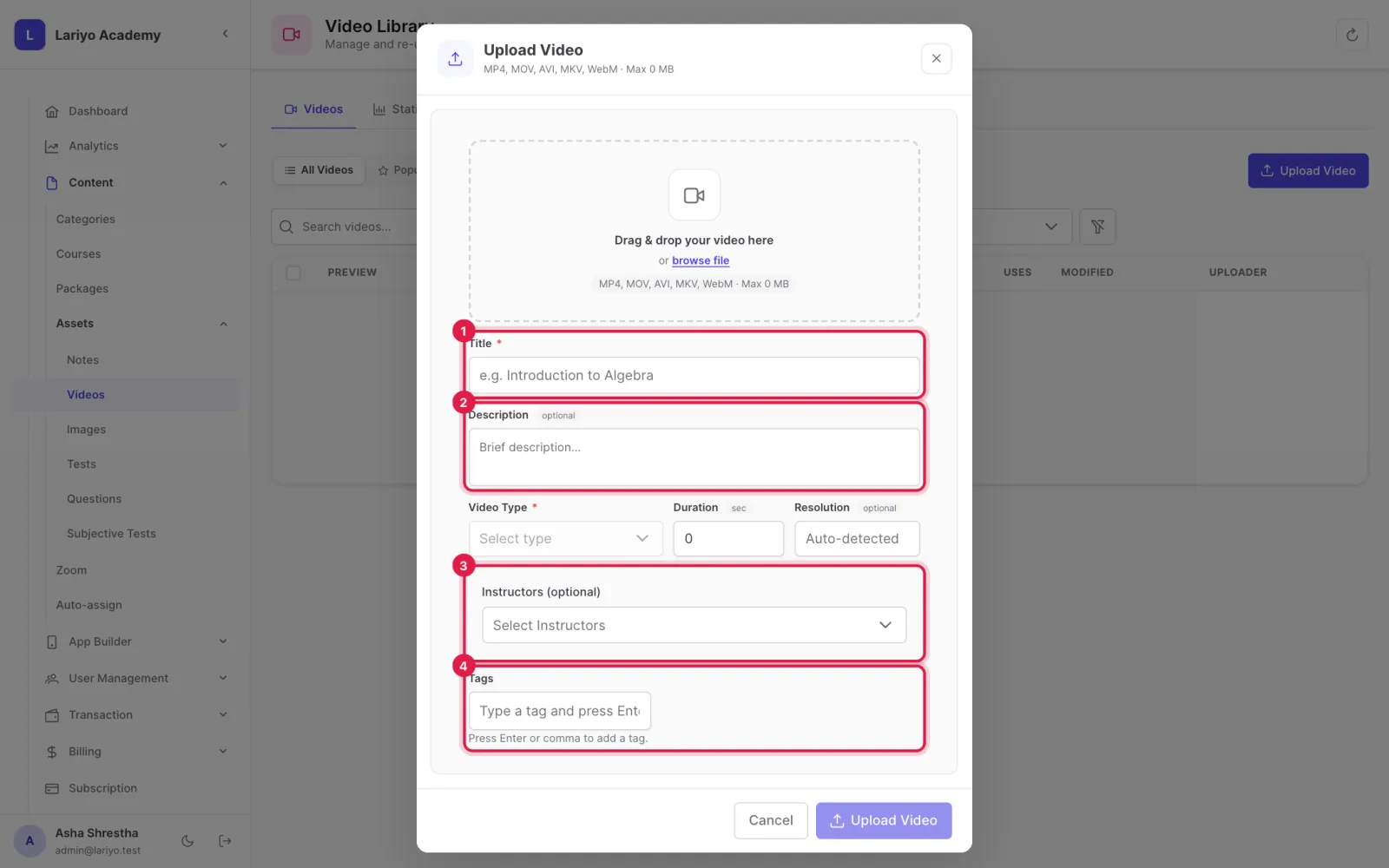
    Step 3 of 5 in the Lariyo admin panel (Content → Assets → Videos): Enter a title, and optionally a description, instructors and tags. The control to use is outlined in red.
  4. Upload. Processing runs in the background; the status shows when the video is ready.
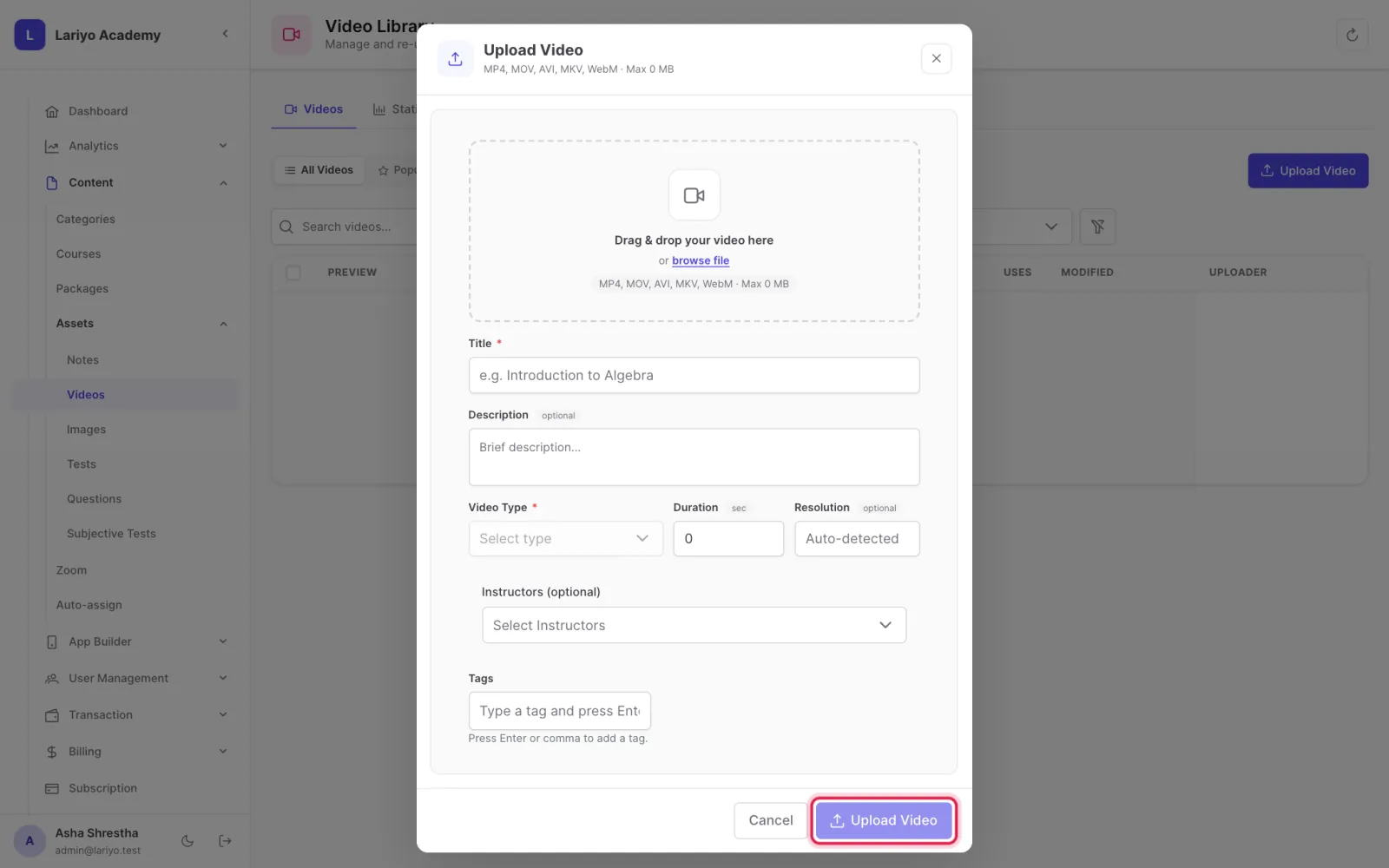
    Step 4 of 5 in the Lariyo admin panel (Content → Assets → Videos): Upload. Processing runs in the background; the status shows when the video is ready. The control to use is outlined in red.
  5. Use Place in locations to add the video to chapters of any course.

Tips

If processing fails, use Retry processing on the video.

Add video chapters (timestamps) so students can jump to a topic.

Updated 11 November 2026. Still stuck? Contact us.