

Upload PDF notes
Notes are PDFs and documents shown in the app's secure viewer, with an optional table of contents.
Where: Content → Assets → Notes
Steps
-
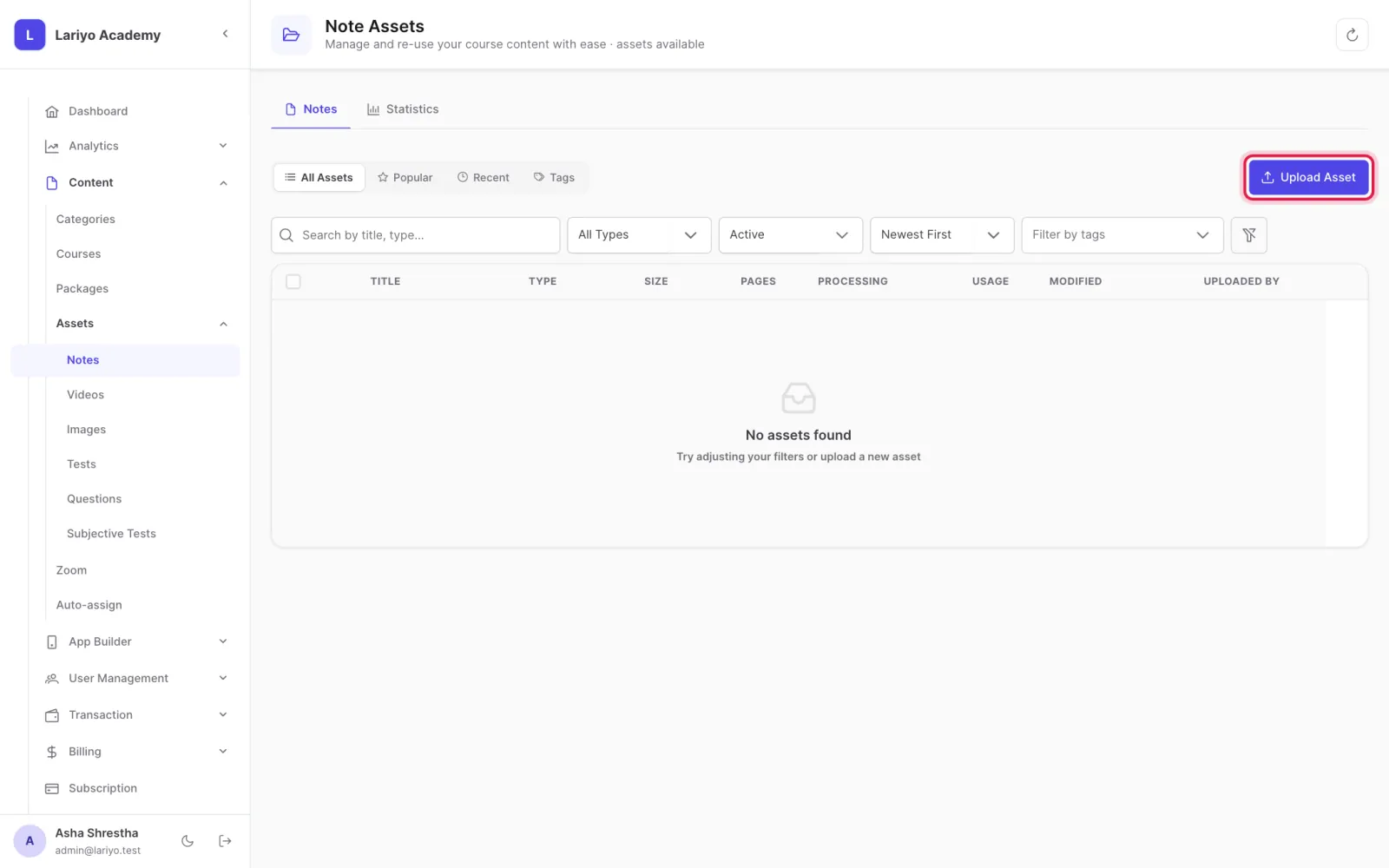
Open Content → Assets → Notes and click Upload Asset.
-
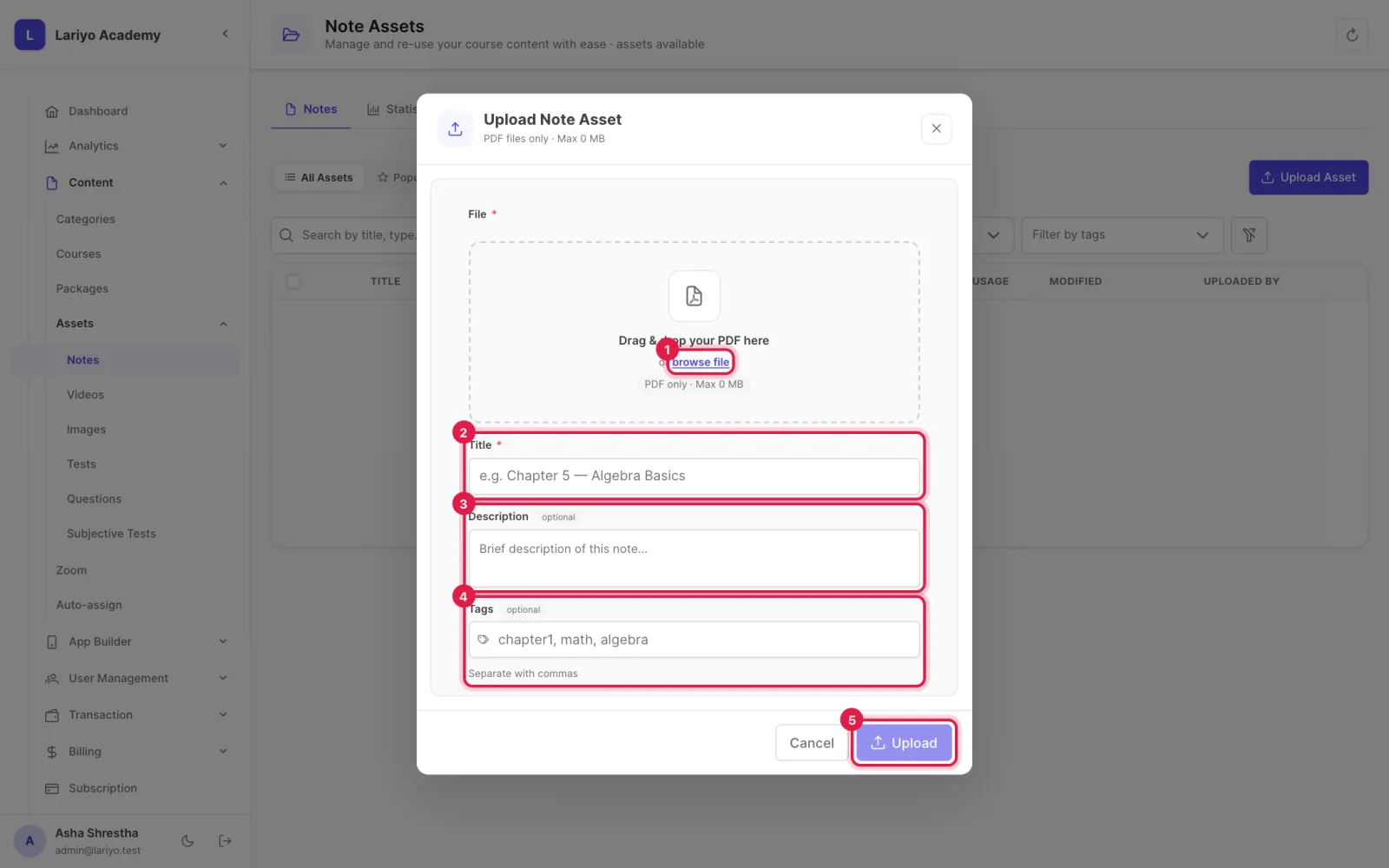
Choose the PDF, add a title, description and tags, and upload.
- Open the note to add a table of contents: a chapter name and the page it starts on.
- Place the note in chapters; per chapter you decide whether students may download or save it.
Updated 11 November 2026. Still stuck? Contact us.