

Connect Claude or ChatGPT to your institute
Account → MCP gives you a connector address and your institute ID so an AI assistant can work as one of your admins.
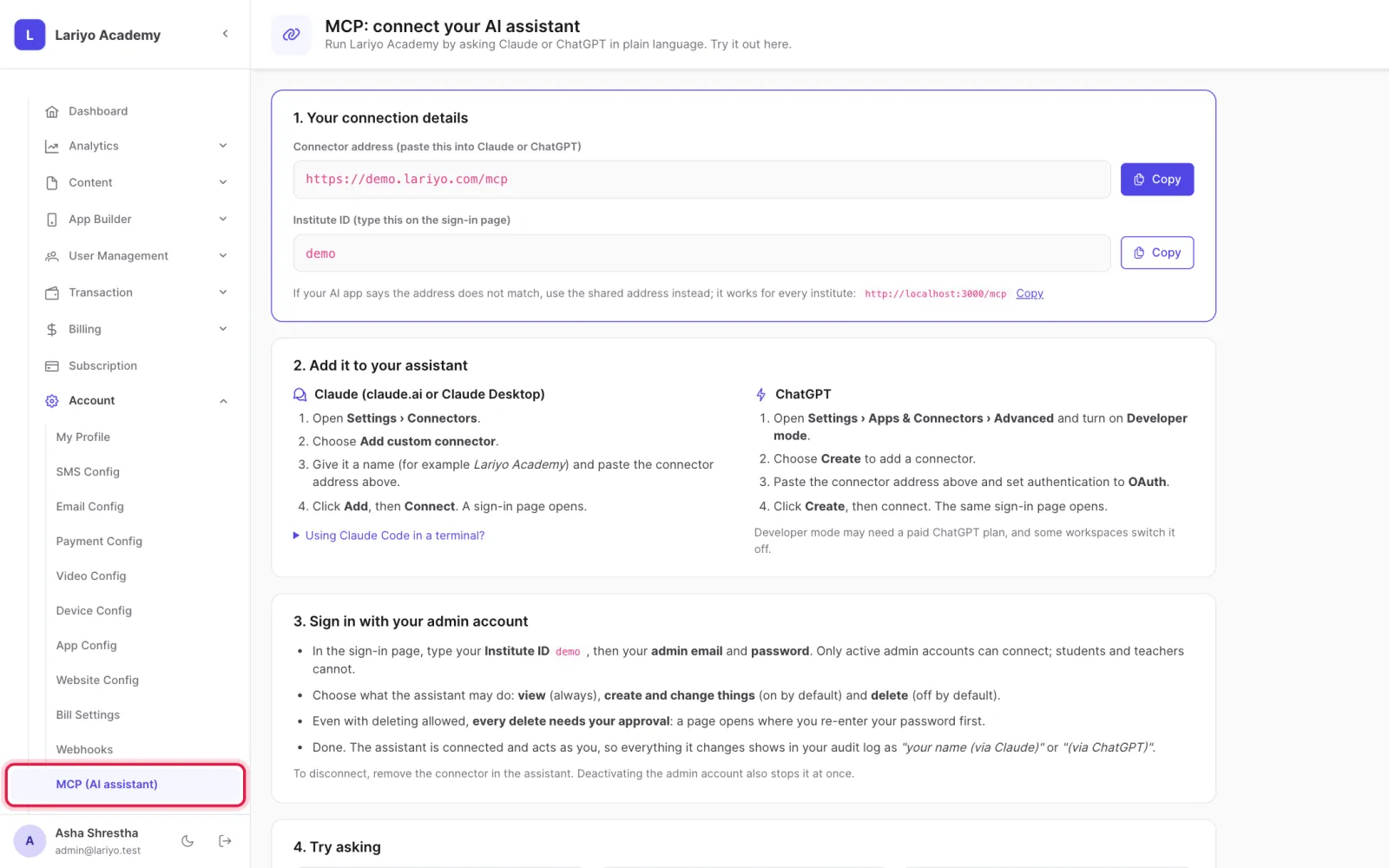
Where: Account → MCP (AI assistant)
Steps
-
Open Account → MCP (AI assistant).
-
Click Copy next to the connector address.
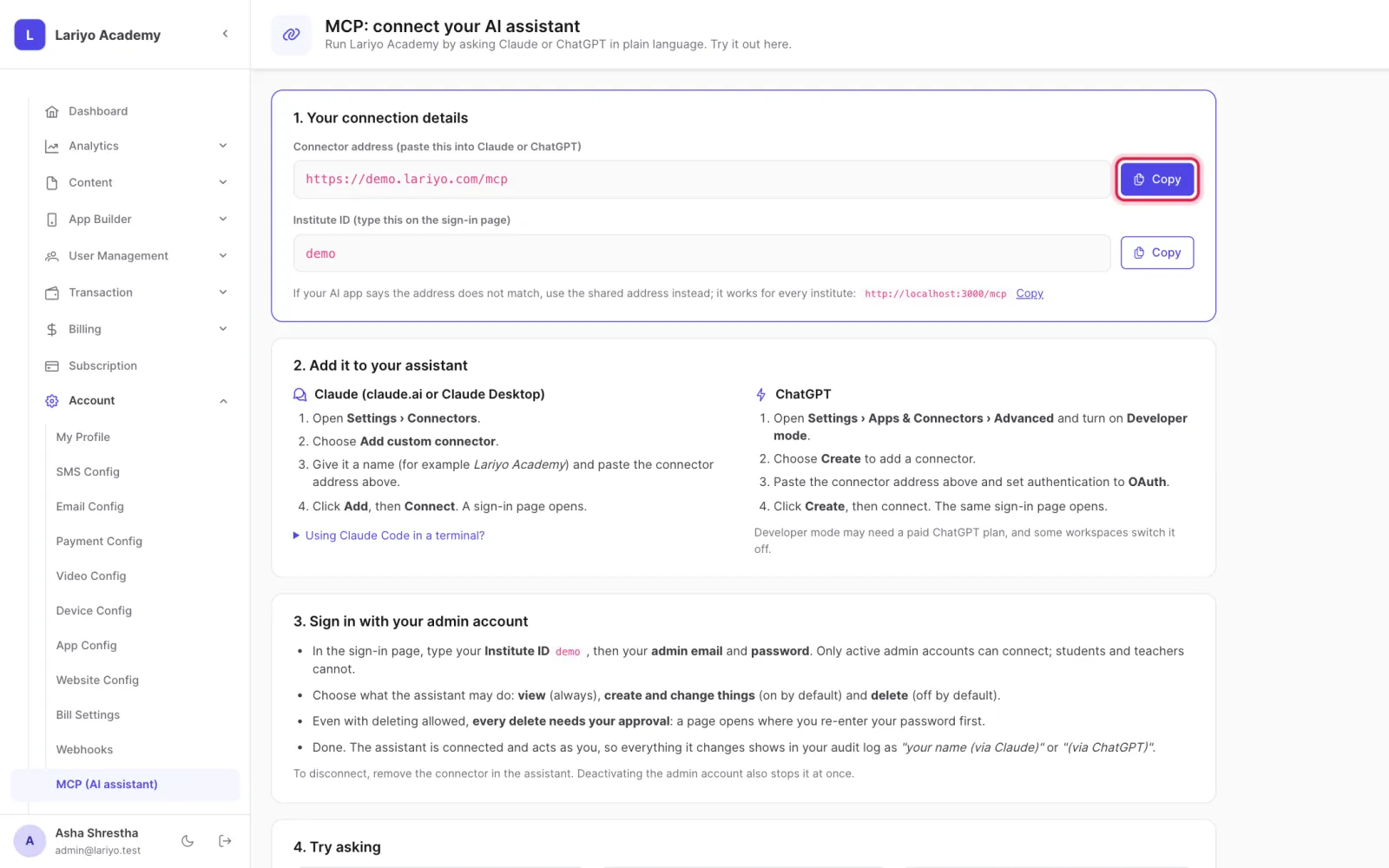
- In Claude (claude.ai or Claude Desktop) or ChatGPT, add a custom connector and paste the address.
-
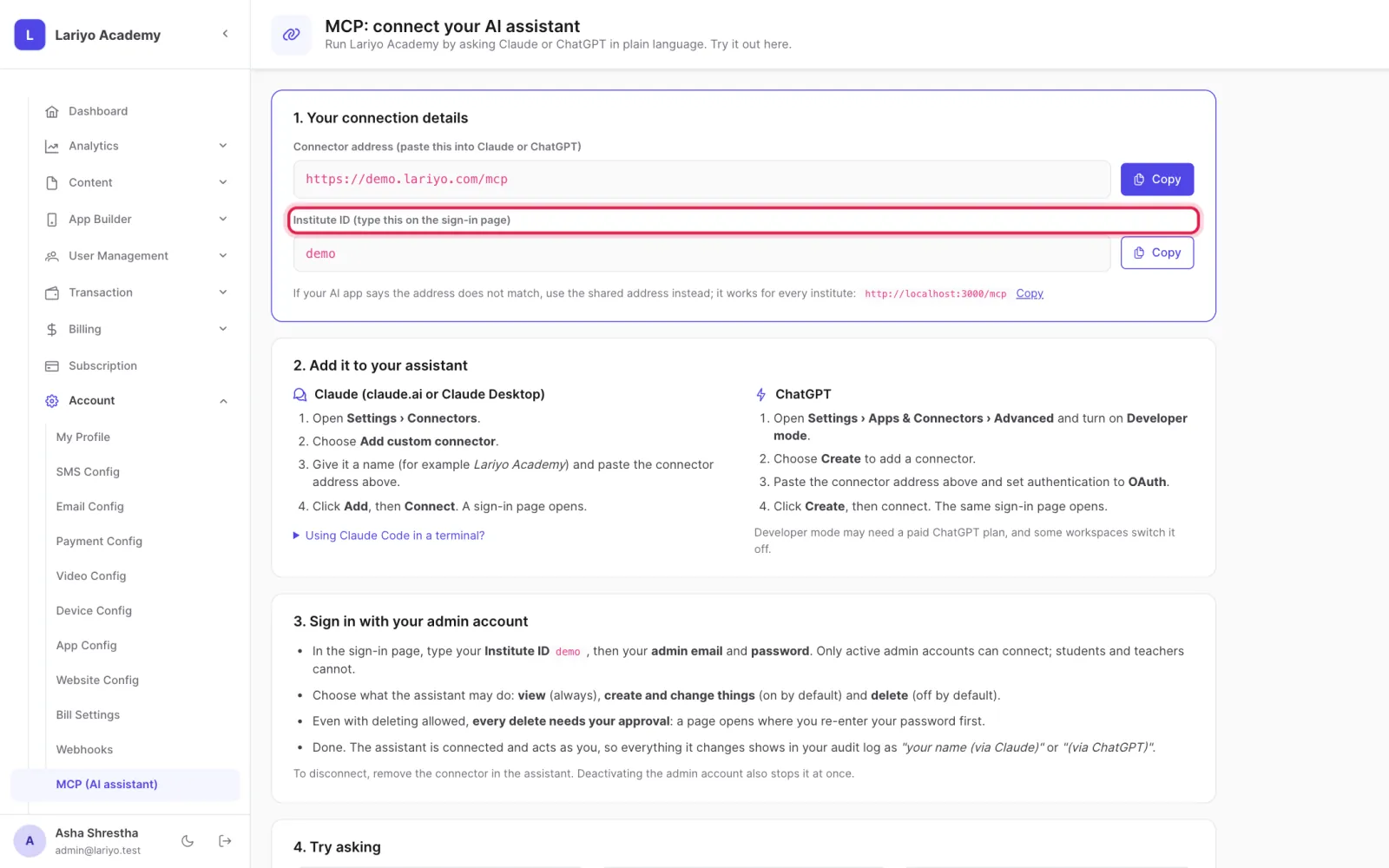
When the sign-in page opens, type your institute ID and sign in with your own admin email and password.
-
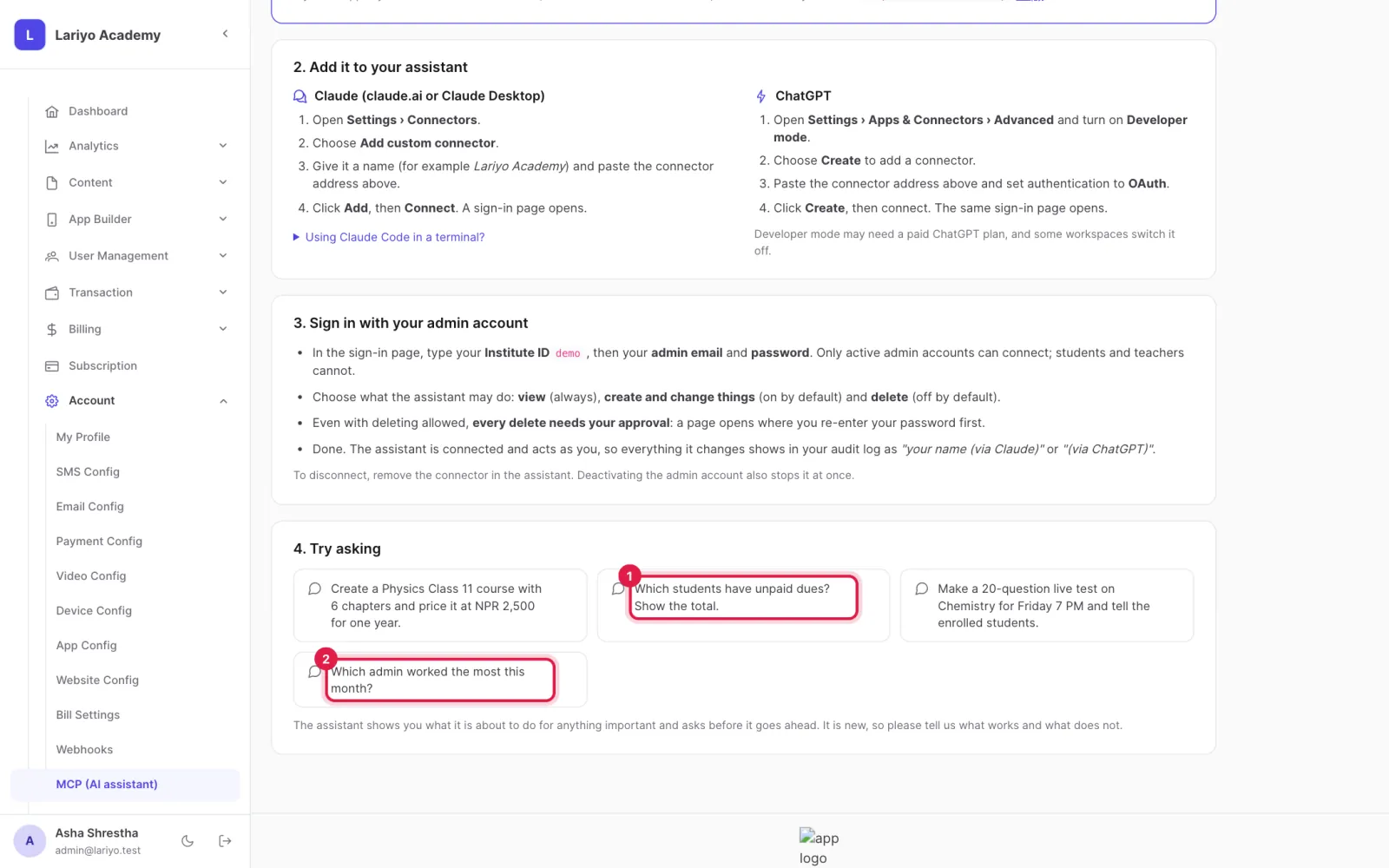
Ask in plain words, for example "Create a Physics course with five chapters" or "Which admin worked the most this month?"
Tips
Deleting anything needs your approval in the browser with your password.
Every change the assistant makes appears in the Audit log as made "via Claude" or "via ChatGPT".
Updated 11 November 2026. Still stuck? Contact us.